


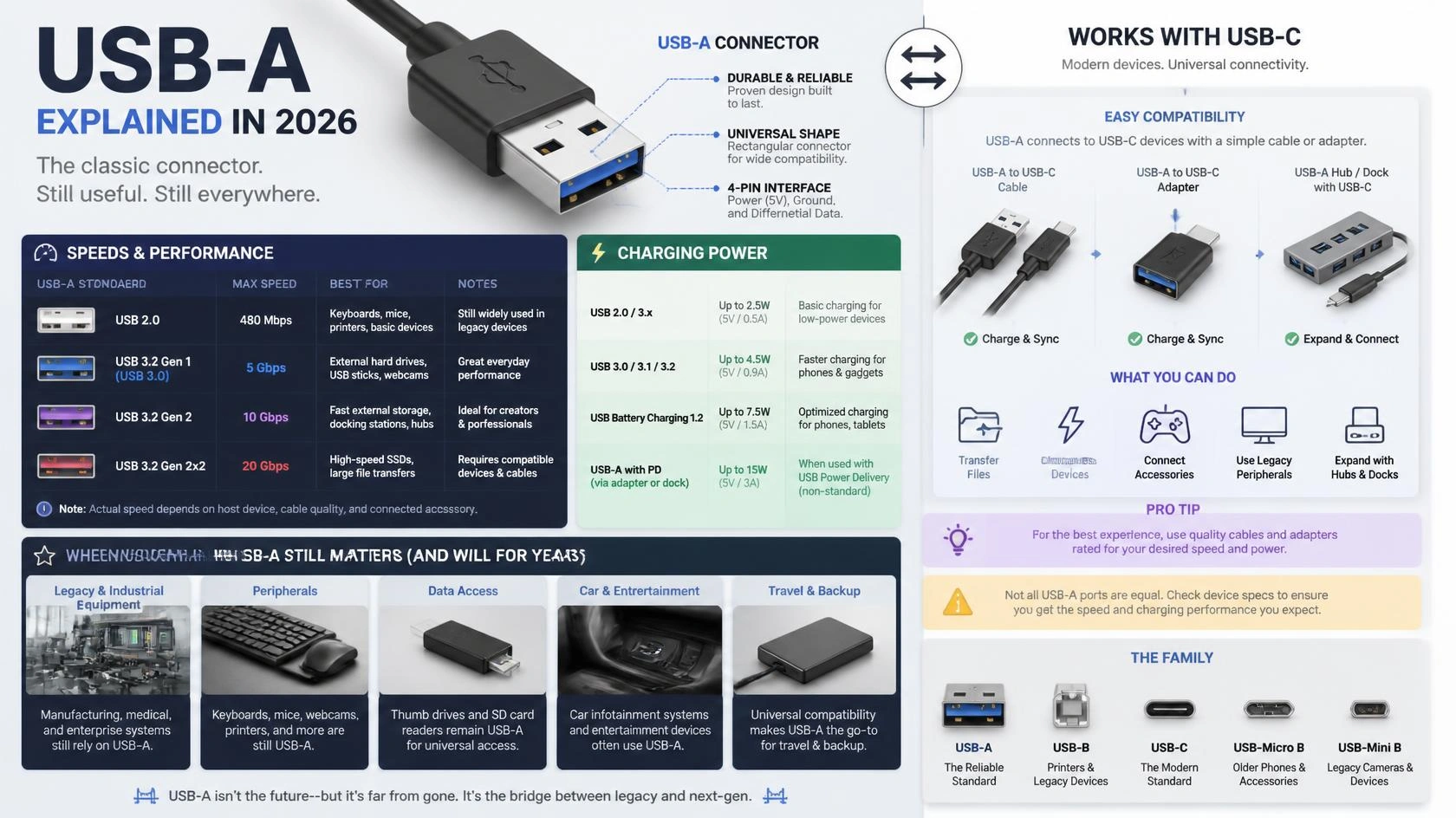
USB-A is the flat, rectangular USB connector found on countless computers, chargers, hubs, keyboards, printers, and flash drives. Its shape does not determine its speed. Depending on the hardware, Type-A can carry older USB 2.0 traffic or USB 3.x data at speeds of up to 10 Gbps, while newer high-bandwidth and high-power features favor USB-C. We cover this in more depth in RAM DDR5.
If you’re trying to identify a port, choose a cable, or determine whether an adapter will slow a device down, focus on three things: connector shape, data rating, and power rating. These are separate specifications, which explains much of the confusion surrounding older and newer USB ports.
| Key fact | What it means |
| Connector shape | Flat, rectangular plug and receptacle |
| Reversible | No; it fits in only one orientation. |
| Possible data standards | Older USB versions through USB 10Gbps |
| Maximum 3.x rate with Type-A | 10 Gbps |
| USB 20Gbps | Requires the multi-lane Type-C design |
| Charging | Supported, but available power depends on the port or charger. |
| Compatibility | Can connect to other USB connector types through suitable cables or adapters |
| Common uses | Keyboards, mice, flash drives, printers, hubs, chargers, and older peripherals |
USB-IF’s current USB 3.2 material defines data rates of 5, 10, and 20 Gbps. The 20 Gbps mode uses two 10 Gbps lanes, a design supported by Type-C cabling. USB-IF compliance material also lists Type-A connections for USB 3.2 Gen 2 at 10 Gbps. We cover this in more depth in USB Type B.
What Type-A Actually Tells You
The connector tells you what the plug looks like, not how quickly data will move. A rectangular port might belong to an old USB 2.0 computer, a 5 Gbps USB 3.x system, or a 10 Gbps implementation. That’s why two ports with the same shape can perform quite differently.
USB Type-A dates back to the original USB era of the 1990s. It became familiar on desktop PCs and laptops because these devices typically provided a rectangular host-side connection. Printers, storage devices, cameras, and other peripherals often used a different connector at the opposite end of the cable.
USB-A That distinction still matters when shopping. A product listing that says only “USB Type-A” tells you the connector shape. It does not confirm whether the connection runs at 480 Mbps, 5 Gbps, or 10 Gbps.
USB-A Speeds: Why the Connector Shape Doesn’t Set the Rate
Several USB generations can use the same rectangular connector. USB 2.0 has a maximum signaling rate of 480 Mbps. Later USB 3.x implementations increased that rate to 5 Gbps and then 10 Gbps.
| USB data level | Maximum signaling rate | Type-A support |
| USB 2.0 | 480 Mbps | Yes |
| USB 5Gbps | 5 Gbps | Yes |
| USB 10Gbps | 10 Gbps | Yes |
| USB 20Gbps | 20 Gbps | No; requires a Type-C multi-lane connection |
| USB4 | 20 Gbps and higher | Type-C |
USB-IF recommends using performance labels such as USB 5Gbps, USB 10Gbps, and USB 20Gbps because older-generation names have become difficult to follow. The practical lesson is simple: look for the stated transfer rate rather than guessing based on the connector.
Real-world file-transfer speeds will also be lower than the theoretical signaling maximum. Your drive, controller, cable, operating system, and workload can all affect the final result.
Charging: What the Rectangular Port Can and Can’t Do
Type-A connectors can supply power, which is why they remain common on wall chargers, battery packs, vehicles, and computers. The available charging rate varies by charger and implementation, so the port shape alone cannot tell you how quickly a phone or accessory will charge.
USB-C has a much higher standardized power ceiling. USB-IF says USB Power Delivery over a full-featured Type-C cable and connector can support applications requiring up to 240 watts. That makes Type-C much better suited to modern laptops, monitors, docks, and other devices with substantial power requirements.
If charging speed matters, check the charger’s stated wattage and the device’s input requirements. A compatible plug does not guarantee the fastest available charging mode.
Type-A vs. USB-C: The Differences That Matter
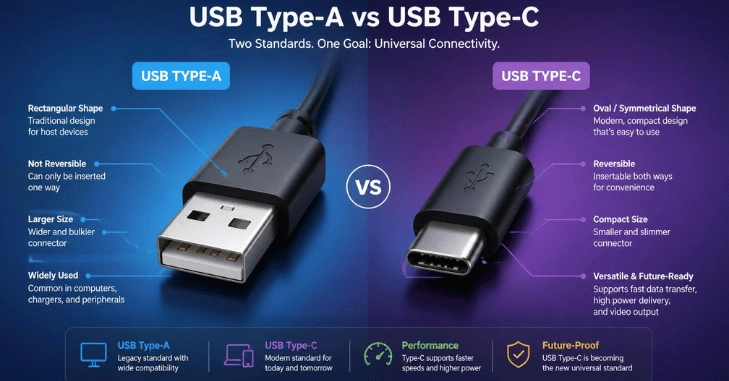
The biggest physical difference is easy to spot. Type-A is rectangular and has an “up” and “down” orientation. Type-C is smaller and reversible. More important differences become apparent when you consider newer data, charging, and display technologies.
| Feature | Type-A | USB-C |
| Shape | Wide rectangle | Small, rounded oval |
| Reversible | No | Yes |
| USB 10Gbps | Yes | Yes |
| USB 20Gbps and USB4 | No | Yes, with suitable hardware |
| USB Power Delivery up to 240W | No | Supported by compliant Type-C equipment |
| Modern laptop adoption | Common on many existing systems | Increasingly central to new portable devices |
USB-C does not guarantee support for every advanced feature. A Type-C port can still run at a lower USB data rate, so you need to check the device specifications to determine what it supports. SciTechWiz’s Google Pixel Slate M3 review, for example, describes two USB-C ports used for charging, data transfer, and external displays.
Adapters and Compatibility: The Slowest Link Wins
A Type-C device can often connect to a Type-A computer through a compliant cable or adapter. USB-IF certification material specifically accounts for Type-C-to-Type-A cable assemblies, including 10 Gbps USB 3.2 Gen 2 designs.
An adapter cannot create performance that the original port does not support. Imagine a 10 Gbps external SSD connected through a compatible cable to a 5 Gbps computer port. The connection will operate at the highest speed supported by both sides, which in this case is 5 Gbps. USB-IF explicitly states that backward-compatible USB 3.2 equipment operates at the lowest common speed.
This same principle matters for everyday accessories. SciTechWiz’s guide to choosing a mouse for Mac recommends checking connectivity alongside compatibility and other practical features.
Do USB Port Colors Indicate Speed?
Color can provide a clue, but it isn’t a dependable specification. Blue inserts have commonly been associated with USB 3.x ports, while black inserts are often seen on older connections. Manufacturers can use other colors, and a port’s appearance cannot replace its technical specifications.
For storage drives, docks, capture devices, or other speed-sensitive hardware, check the computer’s manual or product page. A printed “5Gbps” or “10Gbps” rating tells you far more than the color of the plastic insert.
Where the Older Connector Still Makes Sense
There is little reason to replace working equipment simply because it uses the rectangular connector. Keyboards, mice, printers, game controllers, flash drives, audio interfaces, and similar peripherals often require far less bandwidth than modern USB standards can provide.
The large installed base also makes the connector useful in mixed-device setups. Desktops, office computers, cars, TVs, projectors, and chargers may still include these ports. SciTechWiz’s projector buying guide shows why checking a device’s full collection of USB, HDMI, and other connectivity options remains useful when matching older and newer hardware.
For a basic keyboard or mouse, an inexpensive adapter may make more sense than replacing the accessory. For high-speed storage or a laptop dock, the newer connector offers a clearer upgrade path.
When Moving to USB-C Is Worth It
Prioritize Type-C when buying a new laptop, dock, high-performance external SSD, monitor connection, or powerful charger. Current USB development uses Type-C for higher-bandwidth standards, and USB Power Delivery also uses the newer connector for its highest standardized power levels.
That doesn’t mean every older rectangular port has become useless. Instead, the two designs now suit different purposes. Existing peripherals can remain practical, while new equipment that requires more bandwidth, charging power, or display capability increasingly benefits from Type-C.
A useful buying rule is to ask what the connection needs to do, then choose the connector and specification together. “Will it fit?” is only the first question. “Will it run at the speed and power I need?” is the question that helps prevent disappointing purchases.
Check These Three Details Before Buying a Cable or Adapter
Before ordering anything, confirm the connectors at both ends, the required data speed, and the required charging power. That 30-second check prevents most compatibility problems. Keep older peripherals when they meet your needs, and choose Type-C when newer speed, charging, or display features provide a meaningful benefit.
Conclusion
USB-A may be an older connector, but it is far from useless. Its rectangular design remains common across computers, chargers, keyboards, mice, printers, storage devices, and many other peripherals. The most important point is that the USB-A shape does not determine the connection’s speed or power capabilities. Different Type-A ports can support different USB standards, so checking the actual specifications is always more reliable than judging a port by its appearance.
For everyday accessories and older devices, USB-A can still provide everything you need. However, if you are buying a new laptop, high-speed SSD, dock, monitor, or powerful charger, USB-C is generally the better long-term choice because it supports newer high-bandwidth technologies, reversible connections, and higher USB Power Delivery capabilities.
Frequently Asked Questions
No. It remains useful for many existing computers, chargers, keyboards, mice, storage devices, and peripherals. Newer high-bandwidth standards and high-power USB Power Delivery favor Type-C, so the older connector is gradually becoming less central rather than becoming unusable overnight.
No. Type-A describes the physical connector. USB 2.0 describes a data specification. The same connector can support USB 2.0, 5 Gbps USB 3.x, or 10 Gbps USB 3.x, depending on the hardware.
USB-IF compliance material includes Type-A connections at USB 3.2 Gen 2’s 10 Gbps rate. The 20 Gbps USB 3.2 mode uses two lanes supported by the Type-C design.
Usually, yes, with a suitable compliant cable or adapter. Data speed and charging capability will depend on the slowest component in the connection, including the host port, cable, adapter, and device.
Don’t rely on color alone. Blue has commonly indicated a USB 3.x connection, but manufacturers do not always use colors consistently. Check the computer’s specifications or the speed marking beside the port.