


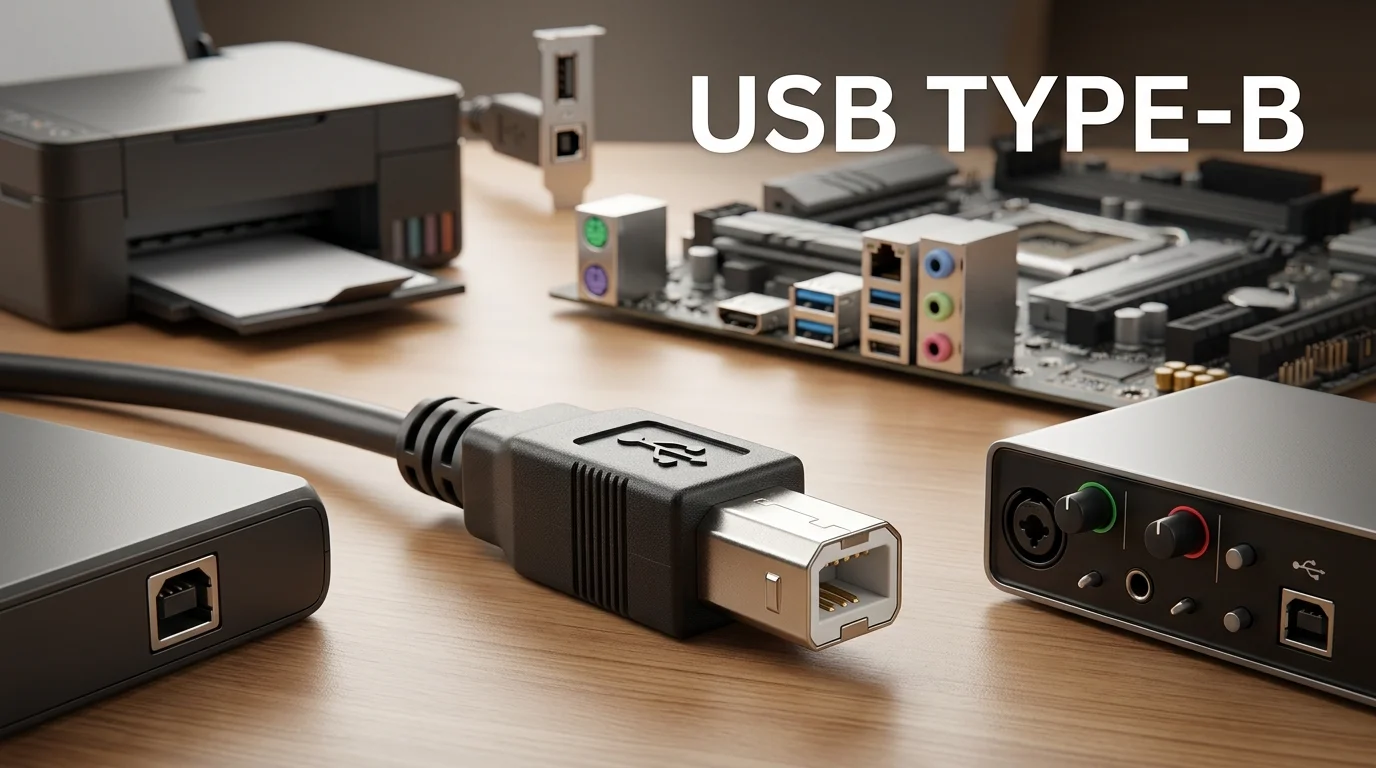
If you’ve ever connected a printer, scanner, audio interface, or older external drive, you’ve probably used USB Type B. It’s the square-shaped USB connector commonly found on peripheral devices rather than computers.
USB-B remains useful even as USB-C becomes more common. Understanding its shape, versions, cable options, and compatibility can help you avoid buying a cable that doesn’t fit or limits your connection speed.
| Quick fact | Details |
| Connector shape | Nearly square with two beveled upper corners |
| Common devices | Printers, scanners, audio interfaces, some external drives |
| Typical cable | USB-A to USB-B |
| Modern computer option | USB-C to USB-B |
| USB 2.0 maximum data rate | 480 Mbps |
| USB 3.0 Type-B maximum data rate | 5 Gbps |
| Reversible | No |
| Still used today? | Yes, especially on printers and professional equipment |
Direct answer: A USB-B connector is the squarish device-side plug commonly used on printers, scanners, audio equipment, and some storage devices. Standard versions commonly support USB 2.0, while the larger USB 3.0 version adds extra contacts for faster data transfer. The connector shape alone does not determine USB speed.
Key Takeaways
- USB-B usually appears on the peripheral rather than the host computer.
- Standard USB-B is commonly associated with USB 1.x and USB 2.0 equipment.
- USB 3.0 Type-B has a modified, taller connector with extra contacts.
- A modern laptop can connect through a USB-C-to-B data cable when both devices support the connection.
- Connector shape and USB speed are separate specifications.
- Printers, scanners, MIDI equipment, and audio interfaces are common USB-B devices.
What Is USB Type B and What Does It Do?
USB-B is part of the Universal Serial Bus connector family. The original USB system used different connectors at each end to indicate the direction of the connection.
The computer or host traditionally used a rectangular Type-A port, while the peripheral used the squarer Type-B receptacle. This arrangement helped prevent users from connecting two host ports with an ordinary cable.
A standard USB-B plug is easy to recognize. It has an almost square profile with angled upper corners. Unlike USB-C, it isn’t reversible, so it can only be inserted in the correct orientation.
The connector can carry both data and power. Its exact capabilities depend on the USB specification supported by the cable, host, and peripheral.
Where Are USB-B Connectors Used?
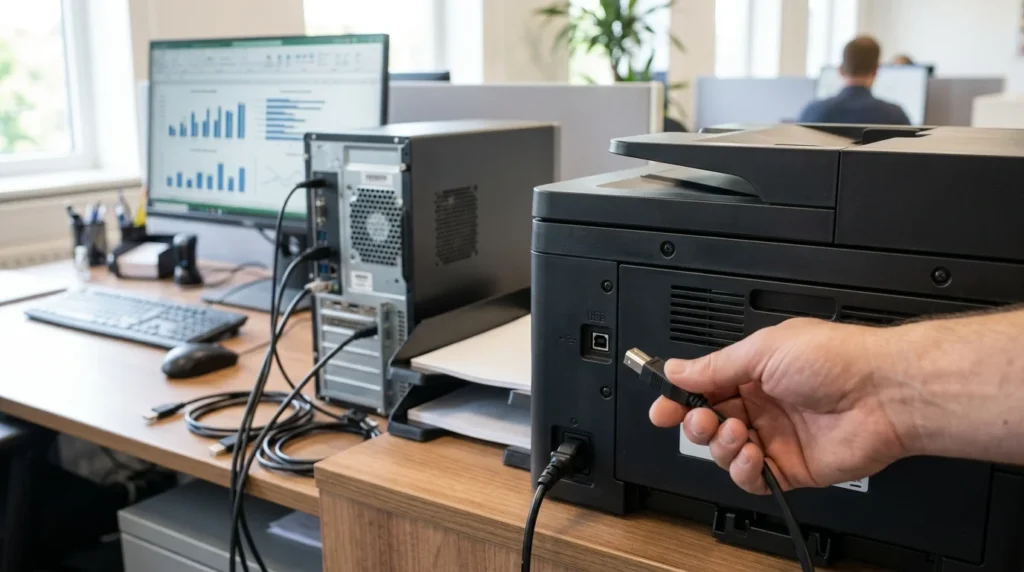
The connector is most closely associated with printers. In fact, USB-A-to-B cables are often informally called “printer cables.”
Printers aren’t the only devices that use them. You may also see the port on:
- Flatbed and document scanners
- USB audio interfaces
- Digital pianos and MIDI keyboards
- DACs and other audio equipment
- Some powered USB hubs
- Older external storage devices
- Laboratory and industrial hardware
Printers, scanners, external drives, and other larger stationary peripherals are common applications for this connector.
This explains why the connector hasn’t disappeared. USB-C is common on newer personal electronics, but many stationary peripherals don’t gain much from replacing a proven device-side socket.
If you’re comparing older connections with newer USB-C hardware, SciTechWiz’s Google Pixel Slate M3 review provides an example of a computer designed around USB-C ports.
Standard USB-B vs USB 3.0 Type-B
One common source of confusion is the difference between the connector’s physical type and its USB generation.
A connector can belong to the Type-B family while supporting different USB specifications. The standard version commonly used with USB 2.0 has four contacts. USB 2.0 provides a maximum signaling rate of 480 Mbps.
USB 3.0 Type-B adds extra contacts needed for SuperSpeed communication. It supports rates of up to 5 Gbps when the host, peripheral, and cable all support USB 3.0. Its plug is taller than the standard USB 2.0 design.
| Feature | Standard USB-B 2.0 | USB 3.0 Type-B |
| Shape | Squarish | Squarish with an added upper section |
| Main contacts | 4 | 9 |
| Maximum signaling rate | 480 Mbps | 5 Gbps |
| Typical use | Printers, scanners, audio equipment | Faster peripherals and some storage hardware |
| Fits a USB 2.0 Type-B receptacle | Yes | No |
There’s an important compatibility detail. A USB 3.0 Type-B receptacle can accept an older USB 2.0 Type-B plug. However, a USB 3.0 Type-B plug can’t fit into an older USB 2.0 Type-B receptacle because its physical shape is larger.
USB-B vs USB-A vs USB-C
The letters describe connector designs rather than a simple ranking from old to new.
USB-A is the wide, rectangular connector found on many desktop computers, laptops, chargers, hubs, and accessories. It traditionally served as the host-side connection.
USB-B is the squarer peripheral-side connector. Printers are its most familiar application.
USB-C is the smaller, oval connector used on modern laptops, phones, tablets, docks, and many newer accessories. Its reversible design allows you to insert the plug either way. USB-C can also support features such as charging and display output, depending on the device and specification. For a closer look at this, see USB.
Don’t assume the connector shape tells you the speed. A USB-C port can support different USB generations, just as Type-B connectors have appeared with different USB specifications.SciTechWiz’s guide to choosing a mouse for Mac also discusses USB-C and Bluetooth when comparing peripheral connectivity options.
Which USB-B Cable Do You Need?
Check both devices before buying a cable. Start with the peripheral port, then inspect your computer.
For an older or traditional computer with USB-A, you’ll usually need a USB-A-to-B data cable.
For a laptop with USB-C ports, you may be able to use a USB-C-to-B data cable directly. This can be cleaner than adding a USB-C-to-A adapter to an older cable.
The required cable depends on the ports available on both devices.
Before ordering, check:
- The connector shape on the peripheral
- The available port on the computer
- Whether you need USB 2.0 or USB 3.0 performance
- Whether the cable supports data, not just power
- The device manufacturer’s compatibility requirements
- The cable length needed for your setup
A cable’s maximum advertised speed won’t make a slower peripheral faster. The connection will operate at the highest speed supported by the complete link.
Is USB-B Being Replaced by USB-C?
USB-C has replaced many older connector designs in phones, tablets, laptops, and portable accessories. That doesn’t mean every existing USB-B device needs to be replaced.
Printers, musical equipment, audio interfaces, and industrial devices often remain in service for years. The connector is still practical because these products usually spend most of their time connected in one place.
USB-C matters most on the host side for many users. If your new laptop has only USB-C ports, a USB-C-to-B cable can often connect it directly to an older peripheral.
You can see the broader role of connectivity choices in SciTechWiz’s short-throw 4K projector guide, which covers USB alongside HDMI, wireless, and other device connections.
Common Connection Problems
If a printer or other USB-B device isn’t detected, don’t assume the port has failed. First, check that the plug is fully inserted at both ends. Then try another USB port on the computer.
If the problem continues, test the connection with a known working data cable. Some cables can be damaged internally even when the exterior looks fine.
You should also check the peripheral manufacturer’s driver or software requirements. Printers, scanners, and professional audio equipment may need device-specific software.
For USB 3.0 equipment, confirm that both the cable and computer port support the required specification. A connection may still work through an older standard, but it will operate at a lower speed.
How to Choose the Right Cable Without Guessing
A simple identification process can prevent most mistakes.
- Look at the peripheral port. Standard USB-B is nearly square with beveled upper corners.
- Check for an extra section. A taller socket may indicate USB 3on.
- Inspect the computer. Determine whether the host uses USB-A or USB-C.
- Check the device manual. Confirm the required USB generation and cable type.
- Buy a data-capable cable. Match the connectors on both ends and the speed you need.
This approach is safer than relying on labels such as “printer cable,” because similar descriptions can refer to different connectors.
The Bottom Line
USB-B may look dated next to USB-C, but it still serves a clear purpose. Its distinctive shape provides stationary peripherals with a secure, easy-to-identify connection.
For most users, choosing the right cable comes down to three checks: identify the peripheral’s port, identify the computer’s port, and confirm the USB generation required by the device. Do that before buying, and you can avoid most compatibility problems.
FAQs
A USB 3.0 Type-B receptacle can accept the smaller USB 2.0 Type-B plug. However, the connection will be limited to the older cable’s capabilities. The larger USB 3.0 plug won’t fit into an older USB 2.0 Type-B receptacle.
Yes, as long as the printer supports a standard USB data connection. Use a compatible USB-C-to-B data cable, or an adapter with an existing USB-A-to-B cable. Check the printer documentation first.
The connector names alone don’t determine speed. USB-B and USB-C describe physical connector types. Their supported transfer rates depend on the USB specification implemented by the devices and cable.
Yes. Standard USB connections include both power and data conductors. The device determines how that power is used. USB-B shouldn’t be confused with modern USB-C charging systems, which support much higher power levels.
Often, but not always. Standard USB-A-to-B cables are widely called printer cables because printers commonly use that connection. Other types of equipment use the same connector as well. Check the port before buying a replacement cable.