


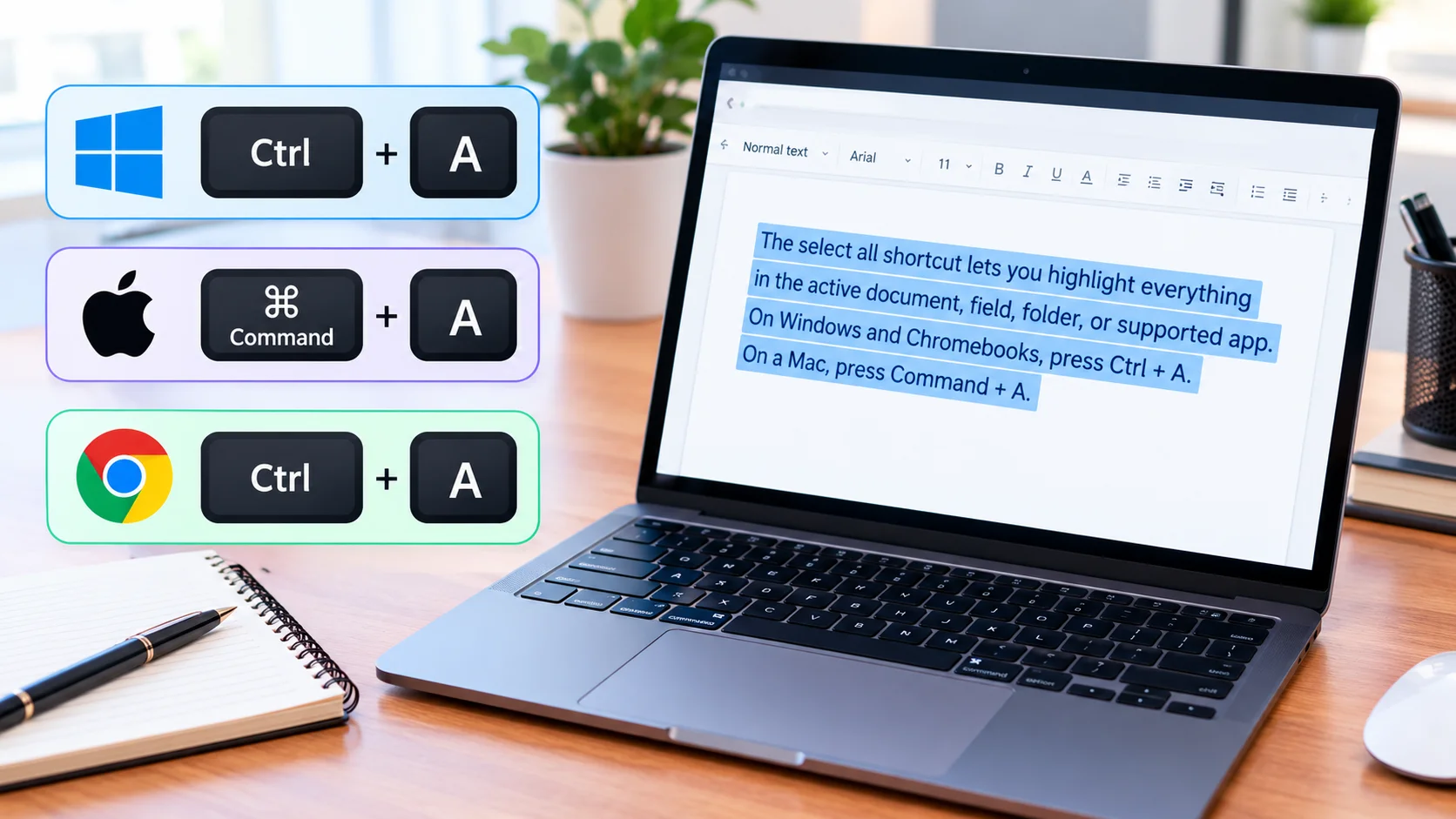
The select all shortcut lets you highlight everything in the active document, field, folder, or supported app. On Windows and Chromebooks, press Ctrl + A. On a Mac, press Command + A.
On Windows and ChromeOS, press Ctrl + A to select everything in the active area. On macOS, press Command + A instead. The result depends on where your cursor or focus sits, so a document, browser field, spreadsheet, or file window can respond differently.
| Platform or situation | Keys | What usually gets selected |
|---|---|---|
| Windows | Ctrl + A | Content or items in the active area |
| macOS | Command + A | Text or items in the current window |
| Chromebook | Ctrl + A | Supported text, files, or app content |
| Google Docs | Ctrl + A or Command + A | Document text and supported content |
| Microsoft Excel | Ctrl + A | Current data region or worksheet |
| Google Sheets | Ctrl + A | Active range or sheet content |
| File Explorer | Ctrl + A | Files and folders in the current view |
| Mobile without keyboard | Touch and hold, then choose Select All | Available text in the active field |
How the Select All Shortcut Works
The Command applies to the part of an app that currently has keyboard focus. That detail explains why the same keys can produce different results. It does not automatically select everything visible across your entire screen.
For example, Ctrl + A inside a document normally highlights the document’s contents. The same keys inside a browser address bar select the address instead. In File Explorer, they can highlight the displayed files and folders.
This context-based behavior is worth remembering before copying, deleting, moving, or formatting large amounts of content. Check what became highlighted before running your next Command. That small check can prevent an unwanted bulk action.
Readers learning other everyday keyboard commands can also see SciTechWiz’s Redo Shortcut guide. The site’s Technology section also covers practical computer and software topics. These related guides can help build a faster keyboard workflow.
What You’ll Need
You only need a working keyboard and an application that supports keyboard selection commands. Make sure the window or field you want to control is active first. Clicking once inside the target area is usually enough.
Laptop users do not need a special function key for the standard combinations. External keyboards use the same main commands on their matching operating systems. Application-specific behavior can still affect what becomes highlighted.
How to Select Everything With the Keyboard

- Open the document, folder, browser, spreadsheet, or app you want to use.
- Click inside the exact area containing the text, files, cells, or items.
- Press Ctrl + A on Windows or ChromeOS, or Command + A on macOS.
- Check the highlighted area before taking another action.
- Copy, move, format, or delete the selection only after confirming the scope.
These steps work because the shortcut follows the currently focused part of the interface. Focus matters more than the number of items displayed. A misplaced cursor can cause the Command to target the wrong field.
If nothing happens, click inside the content area and try the combination again. You can also open the application’s Edit menu. Many desktop programs show their assigned keyboard command beside the Select All menu item.
Windows: Use Ctrl + A
Windows uses Ctrl + A for the standard selection command. Microsoft documents Ctrl + A as selecting every item in the active document or window. That includes many common editing and file-management situations.
In File Explorer, the Command normally highlights the items displayed in the current folder view. It does not select files inside unopened folders. The active pane determines which objects receive the Command.
The combination also works in many Windows text editors, browsers, productivity tools, and dialog boxes. A text field may capture the Command before the larger window does. Always notice where the insertion cursor appears before pressing the keys.
For broader step-by-step computer help, browse SciTechWiz’s how-to guides. Its guides focus on practical actions rather than technical theory. That makes it a useful companion for readers learning common computer commands.
Mac: Press Command + A
Mac computers replace the Windows Ctrl convention with the Command key for this action. Apple lists Command + A as the shortcut for choosing all text or items in the current window. The combination works across many standard Mac applications.
You can use it in Finder, documents, supported browser fields, and many editing applications. The focused window still controls the result. Selecting a sidebar or search field can therefore produce a narrower selection.
The Command key appears on both sides of the space bar on many Apple keyboards. Either Command key can usually be used. Press and hold Command, tap A, then release both keys.
Chromebook: Ctrl + A Is the Main Combination
Chromebooks generally follow the Ctrl-based pattern used by Windows computers. Google Docs uses Ctrl + A for selection in Workspace tools running on ChromeOS. The same convention appears across many browser-based applications.
This makes moving between a Windows PC and Chromebook relatively easy. Both platforms use Ctrl for many common editing commands. Mac users need to remember the switch from Ctrl to Command.
A Chromebook may behave differently inside certain Android apps or specialized web applications. Check the application’s menus when a familiar command does not work. The developer can assign different keys for a specific interface.
Using the Shortcut in Word, Excel, Google Docs, and Sheets
| App | Windows or ChromeOS | Mac | Important behavior |
|---|---|---|---|
| Microsoft Word | Ctrl + A | Command + A | Usually highlights document content |
| Microsoft Excel | Ctrl + A | Command + A | Can select a data region before the whole sheet |
| Google Docs | Ctrl + A | Command + A | Selects document content when focus is in the document |
| Google Sheets | Ctrl + A | Command + A | Selection can depend on the active range |
| Web browsers | Ctrl + A | Command + A | Focus determines whether page or field content is targeted |
Google’s documentation lists Ctrl + A for Google Docs on PCs and Command + A on Macs. The Command applies to document selection when focus is inside the editor. Google also provides related commands for extending selections with arrow keys.
Google Sheets supports Ctrl + A on PCs and Command + A on Macs. Google also lists Ctrl + Shift + Space as another selection command on PCs. Spreadsheet selection can change according to the active range and sheet context.
Excel deserves extra attention because its behavior can be contextual. Microsoft says Ctrl + A may first select the current data region. Pressing it again can expand the selection to the complete worksheet.
That distinction matters when you plan to delete, format, or copy an entire worksheet. Never assume the first press captured every cell. Look at the highlighted range before applying a bulk change.
SciTechWiz’s Software section is another useful internal resource for application-focused topics. It can help readers connect keyboard commands with everyday software tasks. Related software guidance also provides context when shortcuts behave differently between programs.
Why Ctrl + A or Command + A May Not Work
The most common problem is incorrect focus. Your cursor may be inside a search box, address field, sidebar, or another interface element. Click the intended document or content area before trying again.
A second possibility is application-specific behavior. Some programs redefine keyboard commands or limit selection inside certain views. Opening the Edit menu often reveals the Command currently assigned by that program.
Keyboard remapping tools, browser extensions, remote-desktop software, or accessibility settings can also alter keystrokes. Test the Command in a basic editor if you suspect a keyboard problem. Working there suggests the issue is limited to one application.
Protected documents can impose another limitation. Some viewers restrict text selection or copying by design. In those cases, changing the shortcut will not necessarily bypass the restriction.
How to Select Everything Without a Keyboard
Most desktop applications also place the same Command inside an Edit menu. Open that menu and choose the relevant selection option. This method is useful when a key is broken or unfamiliar.
Touchscreen devices usually use a different method. Press and hold editable text until selection controls appear. Choose the option for selecting the available text when the operating system provides it.
With an external keyboard, mobile platforms can support familiar desktop-style combinations. Google Docs uses Command + A for Google Docs on iPhone and iPad with a hardware keyboard. Android versions of Docs support Ctrl + A with a connected keyboard.
Useful Commands After Selecting Everything
Once your content is highlighted, several common commands can follow immediately.
- Copy: Ctrl + C on Windows or Command + C on Mac.
- Cut: Ctrl + X on Windows or Command + X on Mac.
- Paste: Ctrl + V on Windows or Command + V on Mac.
- Delete: Use Delete or Backspace when the application supports removal.
- Format: Apply font, alignment, or other supported changes to the highlighted content.
Pause before using Delete, Cut, or large formatting changes. A broad selection can affect far more content than expected. Confirm the visible highlight before making an irreversible change.
Frequently Asked Questions
What is the select all shortcut?
The select all shortcut is Ctrl + A on most Windows and Chromebook systems. On macOS, the standard combination is Command + A. The active application determines exactly which text or items become highlighted.
How do I select an entire document?
Click inside the document before using the platform’s main selection command. This places keyboard focus on the document instead of another interface field. Check that the complete document appears highlighted before editing it.
Why does Ctrl + A select only part of Excel?
Excel can treat the first Ctrl + A press as a request for the current data region. A second press can expand the selection to the worksheet. Microsoft documents this contextual behavior for worksheets containing data.
Does Ctrl + A work in Google Docs?
Yes, Google lists Ctrl + A as the Command on Windows and ChromeOS. Mac users can use Command + A in Google Docs. The cursor should be focused inside the document editor first.
Can I use the same keys on a phone or tablet?
Touch-only devices normally provide selection through a press-and-hold menu. A connected keyboard can enable desktop-style shortcuts in supported applications. The exact combination depends on the operating system and app.
Remember the Two Main Keys
For most US computer users, the rule is simple: use Ctrl + A on Windows or Chromebook. Use Command + A on a Mac. Then confirm which area became highlighted before making a bulk change.
The select all shortcut becomes more useful once you understand that selection follows keyboard focus. That explains most cases where the keys appear inconsistent. Pair it with copy, cut, paste, and undo commands to handle everyday editing faster.