


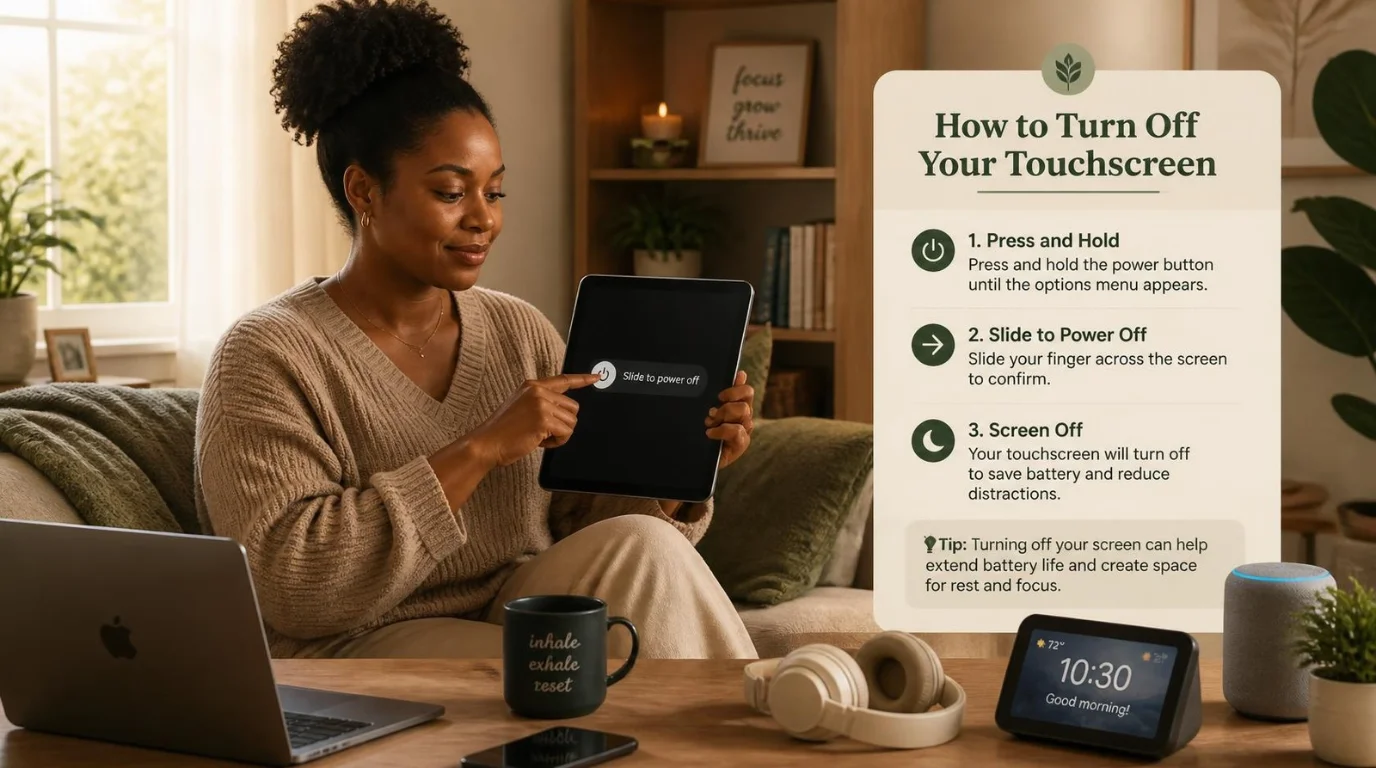
If you’re searching for how to turn off touch screen input, Windows gives you a simple built-in option. You can disable the touchscreen through Device Manager without removing its driver. The same basic procedure works on Windows 11 and Windows 10 computers.
Quick answer: Open Device Manager, expand Human Interface Devices, right-click HID-compliant touch screen, and choose Disable device. Confirm the change if Windows asks. If your computer lists more than one HID-compliant touchscreen, disable each relevant entry until finger input stops working.
| What you want to do | Best method | Reversible? | Restart usually needed? |
|---|---|---|---|
| Disable touchscreen input | Device Manager | Yes | No |
| Enable it again | Device Manager | Yes | No |
| Disable several touchscreen devices | Disable each HID entry | Yes | No |
| Fix a missing HID touchscreen entry | Update drivers and rescan hardware | Yes | Sometimes |
| Manage touch through policy | Windows touch input policy | Yes | Log off may be needed |
What You’ll Need Before You Start
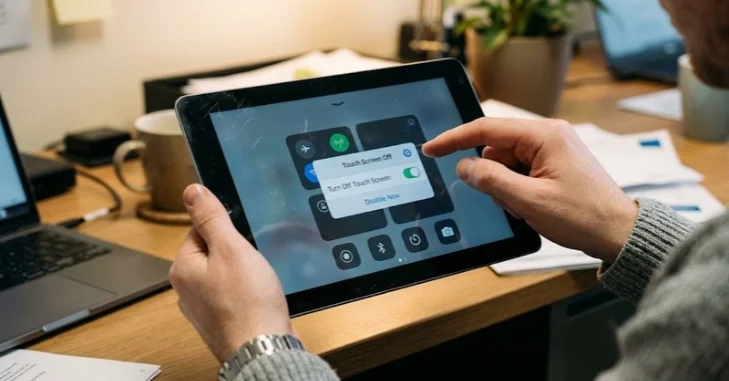
You don’t need third-party software for the normal method. Windows already includes Device Manager, which controls detected hardware devices. You should also have a mouse, trackpad, or keyboard available before disabling finger input.
Save any important work before changing hardware settings. Most systems apply this particular change immediately, but troubleshooting may involve a restart. People new to Windows terminology can also review SciTechWiz’s PC meaning guide for a useful explanation of common computer terms.
How to Turn Off Touch Screen in Windows 11 and 10
Microsoft documents Device Manager as the standard way to disable a detected Windows touchscreen. The procedure is almost identical on Windows 11 and Windows 10. Follow the steps below in order.
- Open Device Manager. Right-click the Start button and select Device Manager from the menu.
- Expand Human Interface Devices. Select the arrow beside that category to view its devices.
- Find HID-compliant touch screen. The name should appear if Windows detects the touchscreen normally.
- Right-click the device. Choose Disable device from the context menu.
- Confirm the change. Select Yes if Windows displays a confirmation message.
- Test the display. Touch the screen and confirm that finger input no longer registers.
Disabling this entry stops Windows from accepting input from that specific touchscreen device. It does not turn off the display itself or uninstall the hardware. Your keyboard, mouse, and trackpad should continue working normally.
Some computers show more than one entry named HID-compliant touch screen. Microsoft says you may need to repeat the process for every relevant entry. Leaving one active can allow touchscreen input to continue.
How to Turn the Touch screen Back On
Re-enabling finger input uses the same Windows menu. Open Device Manager again and return to Human Interface Devices. Right-click the disabled HID touchscreen entry and select Enable device.
To complete the How to Turn Off Touch Screen process, test the display after enabling the touchscreen again. Windows normally restores finger input without requiring you to reinstall a driver. If you disabled several touchscreen entries, enable each one you previously changed to ensure the touchscreen works properly.
The process is similar to reversing other Windows actions. If you often work with Windows commands, SciTechWiz’s redo shortcut guide covers common ways to reverse an accidental undo.
What If HID-Compliant Touch Screen Is Missing?
A missing HID entry usually means Windows is not detecting the touchscreen as expected. First, select View > Show hidden devices inside Device Manager. Then check Human Interface Devices again for a faded or hidden touchscreen entry.
If it still does not appear, check Windows Update and available driver updates. Touchscreens on some laptops depend on chipset, I2C, Serial IO, or manufacturer-specific drivers. Microsoft community guidance commonly recommends updating those components before assuming the digitizer has failed.
You can also select Action > Scan for hardware changes in Device Manager. This asks Windows to detect connected hardware again. Restart the computer afterward if the device still does not appear.
Avoid downloading random “touchscreen driver” packages from third-party driver websites. Your laptop manufacturer or Windows Update is usually a safer source. The exact driver stack can differ between Dell, HP, Lenovo, Microsoft Surface, ASUS, and other computers.
Why You Might Want to Disable Touch Input
Accidental taps are a common reason to switch the feature off. They can move the pointer, activate controls, or interrupt typing while you use a laptop normally. A damaged digitizer can also produce unwanted input commonly called ghost touches.
Disabling finger input can help determine whether the digitizer is causing erratic behavior. If the problem disappears after disabling the device, the touchscreen hardware or its driver becomes a stronger suspect. That test can save time before you start changing unrelated Windows settings.
Troubleshooting hardware one component at a time is usually more useful than changing many settings together. SciTechWiz follows a similar staged approach in its Windows audio troubleshooting guide.
Does Disabling the Touchscreen Save Battery?
You should not expect a large battery improvement from this change alone. The display still operates because only touch input is disabled. Any power difference will vary by device hardware, drivers, and usage.
Disable the feature because you do not want finger input, rather than as a primary battery-saving method. Windows power settings, display brightness, background applications, and battery modes usually provide more practical power controls. Those adjustments also address larger parts of the computer’s power use.
If battery life is your only concern, test your normal runtime before and after the change. Keep screen brightness and workload similar during each test. That comparison gives you more useful information than assuming the touchscreen causes substantial battery drain.
Can You Disable Touch Input Through Windows Settings?
Windows 11 does not provide the same simple touchscreen on/off switch that you might expect under regular Display settings. Device Manager remains the straightforward method for most home users. Current Windows guidance continues to direct users there.
More advanced Windows editions can also expose touch-related administrative policies. Microsoft documents a Turn off Tablet PC touch input policy for supported Windows 10 and Windows 11 editions. Policy changes may require signing out before they take effect.
Most individual PC owners do not need the policy method. Device Manager is easier to reverse and involves fewer configuration changes. Business administrators may prefer policy-based controls when they need consistent behavior across managed computers.
What If the Touchscreen Turns Itself Back On?
Start by confirming that you disabled every applicable HID touchscreen entry. A system with multiple devices can appear unchanged if another compatible entry remains active. Check Device Manager again after restarting.
Windows updates or driver changes can occasionally alter hardware configuration. If the device returns unexpectedly, check recent updates and verify the status of each HID entry. Do not delete drivers unless you are troubleshooting a specific detection problem.
A recurring change can also justify checking manufacturer support documentation. Some laptops include firmware or BIOS options related to touchscreen hardware. Those options vary by model, so avoid following BIOS instructions written for a different computer.
Is Disabling the Touchscreen the Same as Disabling the Touchpad?
No, they are separate input devices. The touchscreen detects finger input on the display, while the touchpad controls the pointer from the laptop’s palm rest. Disabling one should not automatically disable the other.
Always confirm the device name before choosing Disable device. The Human Interface Devices section can contain several entries with similar technical names. Changing the wrong one may temporarily disable another input feature.
If you make a mistake, reopen Device Manager with your keyboard or mouse. Right-click the affected device and choose Enable device. Windows hardware changes made this way are normally reversible.
Common Mistakes to Avoid
Several small mistakes can make this process confusing. Most are easy to correct once you know what Windows is doing. Check these points before attempting more complex fixes.
- Don’t choose Uninstall device when you only want to stop touch input.
- Don’t disable random HID entries that you cannot identify.
- Don’t assume the monitor itself is being powered off.
- Don’t download unknown driver packages from unofficial websites.
- Don’t forget to check for multiple HID touchscreen entries.
- Don’t edit the Windows Registry unless a simpler supported option cannot solve your problem.
Keeping troubleshooting changes simple also makes them easier to reverse. If a Windows problem appears after several changes, undoing them becomes harder to track. SciTechWiz’s guide to the “Retrieving data” copy error uses the same one-change-at-a-time troubleshooting principle.
The Safest Method for Most Windows PCs
For most users, Device Manager is the safest place to control touchscreen input. It is built into Windows, requires no extra software, and makes the change reversible. Microsoft supports the same basic approach for both Windows 11 and Windows 10.
Start with the HID touchscreen entry before trying Registry or firmware changes. If the entry is missing, troubleshoot detection and drivers instead of downloading unknown utilities. This keeps the process simpler and reduces the chance of creating another hardware problem.
Once finger input is disabled, test your keyboard, mouse, trackpad, and any pen you use. If everything you need still works, no further changes are necessary. Return to Device Manager whenever you want to restore touchscreen input.
Frequently Asked Questions
How to turn off touch screen without uninstalling the driver?
Open Device Manager and expand Human Interface Devices. Right-click HID-compliant touch screen and choose Disable device rather than Uninstall. This keeps the driver installed, so you can enable the hardware again later.
Does turning off touchscreen input damage the laptop?
No, using Device Manager to disable a detected touchscreen does not physically damage the display. Windows simply stops using that device for finger input. You can reverse the setting from the same menu.
Why do I have two HID-compliant touchscreen entries?
Some computers expose multiple compatible touch devices or interfaces to Windows. Microsoft recommends repeating the disable procedure when multiple touchscreen entries are listed. Test the display after each change so you know which entries matter.
Can I disable touchscreen input on a Microsoft Surface?
The normal Device Manager procedure may work on Surface hardware, depending on the model and drivers. Some Surface systems expose different touch-related device names. Avoid disabling unfamiliar pen or touch components unless you understand what else they control.
What should I do if Device Manager has no touchscreen entry?
Show hidden devices first, then install available Windows and manufacturer driver updates. Rescan for hardware after the updates and restart if necessary. A touchscreen that remains missing may indicate a driver, firmware, connection, or hardware problem.