


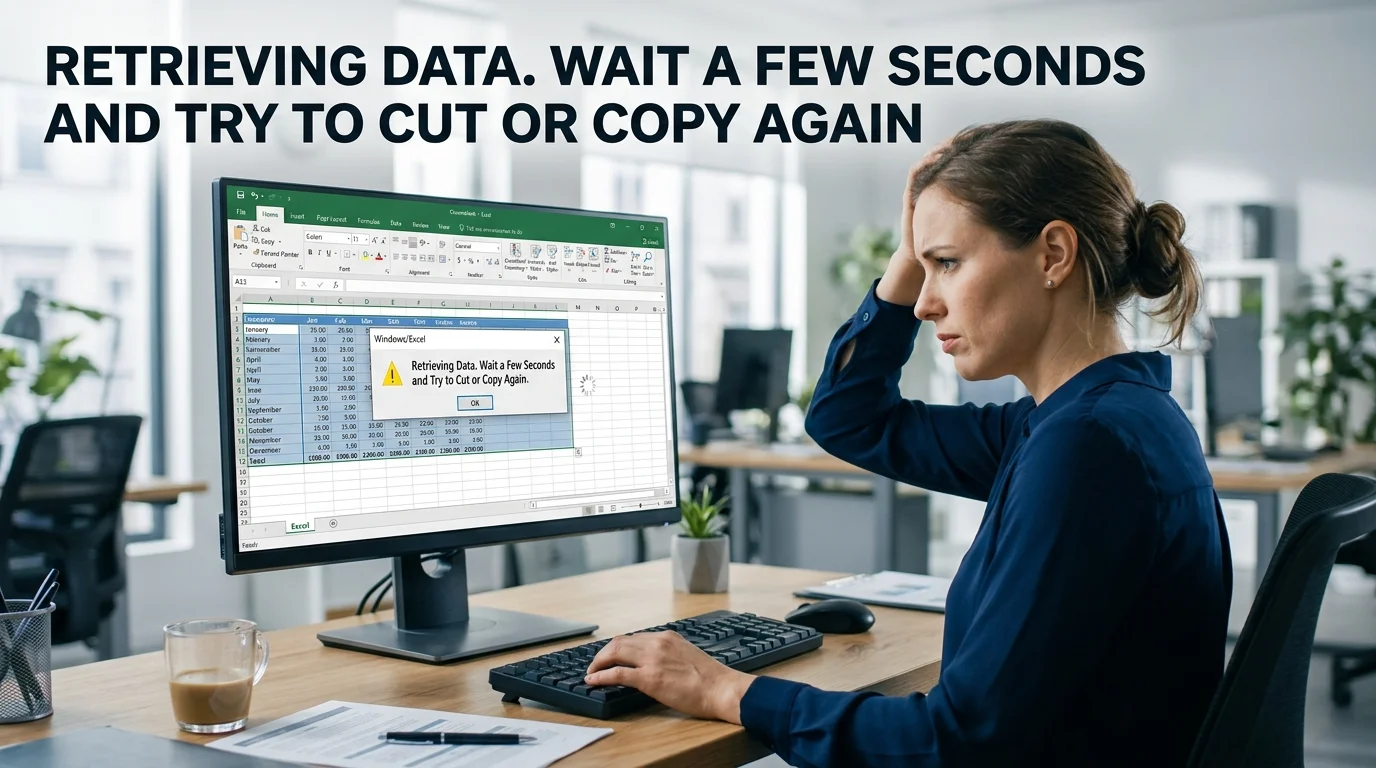
If Excel shows “Retrieving data. Wait a few seconds and try to cut or copy again.”, start by copying the cells again after a short pause. Then, confirm that Office has clipboard permission in your browser. If the problem keeps returning, open the workbook in Excel’s desktop app. Formula-related or organization-wide failures may require support from a Microsoft 365 admin.
| Problem area | Best first action |
|---|---|
| One-time copy failure | Deselect the cells and copy them again |
| Browser clipboard problem | Allow clipboard access for Office |
| Repeated web-app failure | Try a current supported browser |
| Persistent workbook problem | Open the file in Excel desktop |
| Clipboard appears stuck | Clear the Office Clipboard |
| Many users are affected | Check Microsoft 365 service health |
| Formulas fail, but values work | Test a small formula range and escalate if needed |
Microsoft provides dedicated troubleshooting guidance for copy-and-paste errors in Office for the web, including checking whether the browser allows clipboard access.
Why “Retrieving data. Wait a few seconds and try to cut or copy again.” appears

This message is most commonly associated with Excel for the web during copy or cut operations. The browser, clipboard permissions, workbook session, or Microsoft 365 service can interfere with the transfer. Excel for the web runs inside your browser and works with files stored through online services such as OneDrive or SharePoint. Microsoft also notes that browser-based Excel and the desktop application do not behave identically.
A January 2026 Microsoft Q&A report described an intermittent issue affecting formulas across several workbooks and users. Plain values reportedly worked. After standard troubleshooting failed, a Microsoft moderator recommended escalating the issue through Microsoft support. That means the right fix depends on whether you have a temporary browser issue, a workbook-specific issue, or a broader Microsoft 365 issue.
For more general software coverage, Sci Tech Wiz also maintains a dedicated Software section.
What you’ll need before troubleshooting
You don’t need extra software for the first checks. Have these ready:
- The workbook that produces the error.
- Your Microsoft 365 account.
- A current version of Edge, Chrome, Firefox, or Safari, where supported.
- Access to Excel desktop, if your Microsoft 365 plan includes it.
- Administrator help if several users have the same problem.
Microsoft recommends current browser versions for Microsoft 365. Using an outdated browser can reduce compatibility with web-based Office features.
7 ways to fix the Excel retrieving-data copy error
1. Deselect the cells and copy them again
Start with the simplest test. Click another cell so that the original copied range is no longer selected. Wait a few seconds. Select the required cells again and press Ctrl+C.
Move to the destination and paste normally. If the second attempt works, the problem was likely temporary. You can continue working without making larger changes. If it fails repeatedly, move on to the browser checks below.
2. Allow clipboard access for Office in your browser
A browser can block a website from accessing the clipboard. Microsoft specifically recommends checking clipboard permissions when copy and paste fails in Office for the web. In Chromium-based browsers, select the site information control beside the address bar. Find Clipboard and allow access for the Office site.
Reload the workbook after changing the permission. Then, copy a single cell first. If that succeeds, test the original range. This check is especially useful when pasting outside Excel or between browser-based Office files.
3. Test the workbook in a current supported browser
If clipboard permission is already enabled, test another current browser. Microsoft 365 supports current versions of major browsers, including Edge and Chrome, while Firefox and Safari support depends on the operating system.
Sign in to Microsoft 365 in the second browser. Open the same workbook and repeat the copy operation.
If the error disappears, your original browser profile may contain a conflicting setting, cached session, or extension.
Avoid changing several settings at once. Testing one variable at a time makes the cause easier to identify.
Sci Tech Wiz’s How to section also collects practical troubleshooting content for similar technology problems.
4. Open the workbook in Excel desktop
If you often copy large ranges or the web version keeps failing, move the task to the desktop application. Microsoft allows Excel for the web users to open compatible workbooks directly in Excel desktop. Depending on the interface, you may see Editing or Viewing > Open in Desktop.
You can also download a copy to your computer. Microsoft’s current instructions use File > Create a Copy > Download a Copy. Once the workbook opens locally, test the same copy-and-paste action. This is one of the strongest diagnostic steps because it helps separate a browser-based problem from a workbook or Excel problem.
5. Clear the Office Clipboard
A stuck or overloaded clipboard can cause additional paste problems. In desktop Excel, open the Clipboard pane from the Home tab. Microsoft says you can select Clear All to remove every stored clipboard item.
After clearing it:
- Return to the workbook.
- Copy a single cell.
- Paste it into a blank worksheet.
- Increase the copied range if the test works.
Do this after the basic browser tests rather than clearing unrelated browser data immediately.
6. Check whether formulas trigger the error
Test plain values and formulas separately. Copy a few cells containing ordinary text or numbers. Then copy a similarly sized range that contains formulas.
If only formula cells fail, record that difference. A Microsoft Q&A report from January 15, 2026, described exactly this pattern across multiple users: formulas failed while plain values continued to copy. The moderator recommended contacting Microsoft support after standard troubleshooting did not solve the problem.
Don’t replace important formulas with values simply to make copying easier unless your workflow permits that change.
For readers interested in how online applications handle cloud-based data, Sci Tech Wiz also covers cloud computing and synchronization concepts in mobile app development.
7. Check Microsoft 365 service health if several users are affected
If several people suddenly see the same failure, stop treating it as a single-computer problem. Microsoft 365 administrators can open the admin center and go to Health > Service health. The dashboard shows active service issues and related details.
Ask your administrator to check for an incident in Excel, SharePoint, OneDrive, or broader Microsoft 365. If no incident appears and the problem affects many users, the administrator can open a Microsoft support request. This is also a sensible next step when formula-specific failures persist after browser, clipboard, and desktop tests.
Which fix should you try first?
Use this order to avoid unnecessary changes:
- Copy the cells again.
- Check browser clipboard permission.
- Test a different browser.
- Try the Excel desktop application.
- Clear the Office Clipboard.
- Compare formula cells with plain values.
- Check Microsoft 365 service health or contact support.
This sequence starts with reversible fixes and moves toward broader diagnostics.
It also tells you something useful after each test. A successful desktop test points to the browser or web session. A failure across several users points to an organizational or service issue.
How to reduce repeat copy-and-paste failures

Keep your browser up to date and avoid blocking the clipboard permissions Office needs. For copy-heavy work, consider opening the workbook in the desktop application from the start. Microsoft supports switching between browser and desktop workflows for compatible files.
When an error appears repeatedly, test a small sample before copying hundreds of cells. Separating formulas from plain values can also reveal whether the failure is tied to workbook content.
Sci Tech Wiz readers working with browser-first productivity devices can also review the site’s coverage of cloud-based workflows on the Google Pixel Slate.
Get Excel copy and paste working again
Start with the smallest fix and use each result to narrow down the cause. Recopy the cells, confirm clipboard permission, and test a supported browser.
If the web app still refuses to cooperate, open the workbook in desktop Excel. For recurring formula failures or issues affecting multiple users, contact your Microsoft 365 administrator rather than repeatedly resetting the same browser settings.
Frequently Asked Questions
It means Excel could not complete the requested copy or cut operation normally. In Excel for the web, start by retrying the copy and checking browser clipboard access. Repeated failures may require a browser change, a desktop Excel update, or Microsoft 365 troubleshooting.
It is strongly associated with browser-based Excel, but copy-and-paste problems can also involve desktop Excel. Microsoft’s own documentation shows meaningful differences between browser and desktop workbook behavior.
It can help when the Office Clipboard is stuck or contains too many items. Microsoft provides a Clear All option in the Clipboard pane.
Not as the first step. Check Office clipboard permission and test another current browser first. These tests are more targeted and preserve unrelated browser data.
Test a small range of formulas and compare them with plain values. If formulas consistently fail across multiple files or users, document the behavior and involve your Microsoft 365 administrator.
Check Microsoft 365 service health. If no incident is listed, your administrator can contact Microsoft support with details about the affected users, workbooks, browsers, and reproduction steps.