


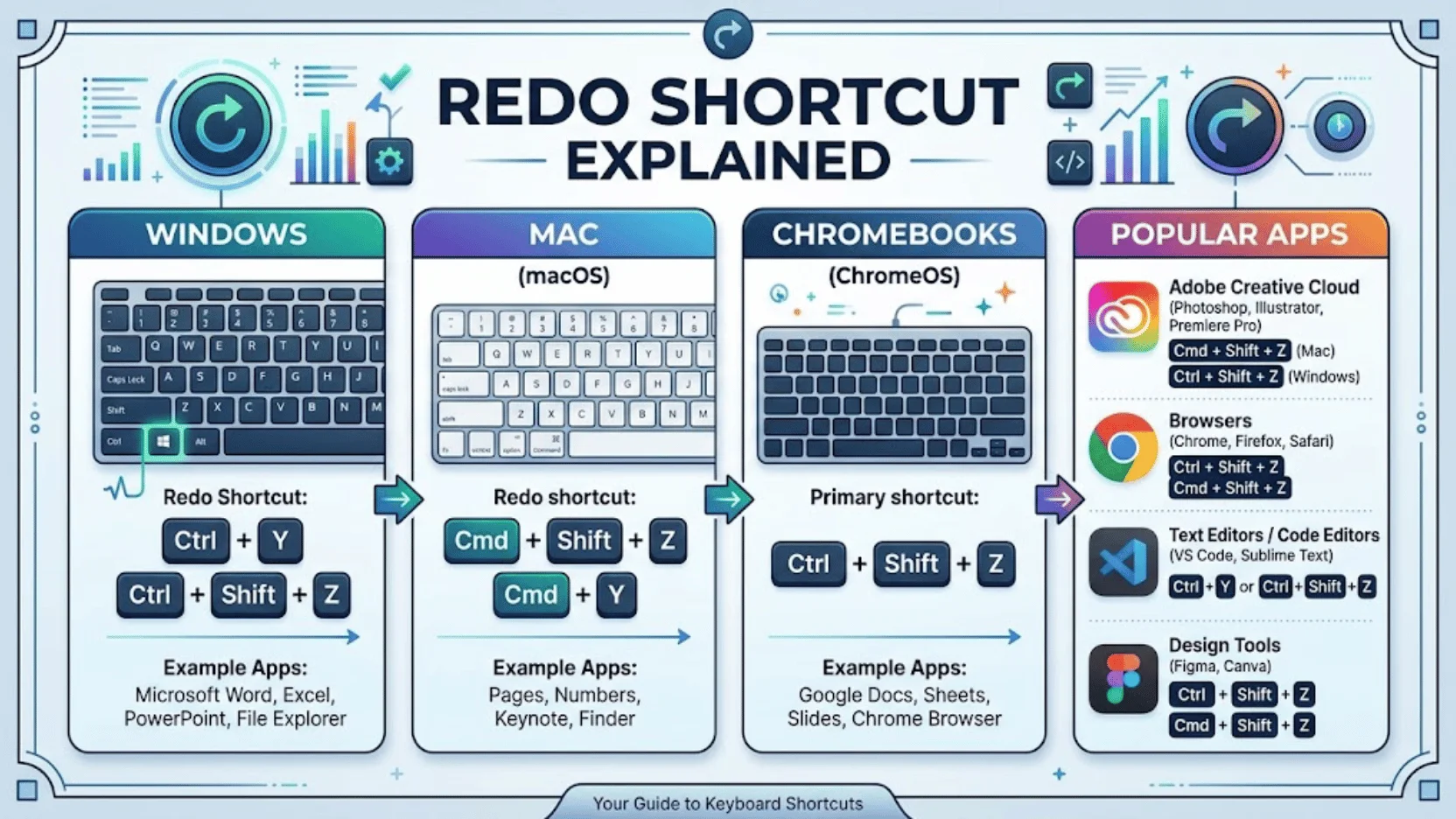
If you need the redo shortcut, start with Ctrl + Y on Windows and Command + Shift + Z on a Mac. Many Windows and browser-based apps also accept Ctrl + Shift + Z. The exact keys depend on the program, so knowing the common alternatives can save you from searching menus when one combination doesn’t respond.
| Platform or app | Common keys to reapply an undone action | Notes |
| Windows | Ctrl + Y | Standard Windows convention |
| macOS | Command + Shift + Z | Common system and app convention |
| Chromebook | Ctrl + Shift + Z | Common in ChromeOS and web apps |
| Microsoft Word, Excel, PowerPoint | Ctrl + Y on Windows | F4 may repeat or reapply some actions |
| Google Docs and many web apps | Ctrl + Shift + Z or Ctrl + Y | Behavior can vary by browser and app |
| Adobe Photoshop | Ctrl + Shift + Z on Windows | Shift + Command + Z on Mac |
Redo Shortcut Quick Reference for Windows and Mac
The quickest answer depends on your computer. On a Windows PC, press Ctrl + Y. Windows itself documents this combination as the command for restoring an action that you previously reversed with Ctrl + Z.
On a Mac, use Command + Shift + Z in most applications. This is the common counterpart to Command + Z, which reverses your previous action. Chromebooks and many browser-based editors tend to use Ctrl + Shift + Z. Some applications support both Windows-style combinations.
If the first key combination doesn’t respond, check the application’s Edit menu. The menu often shows the command next to its current keyboard shortcut.SciTechWiz readers who want more practical computer walkthroughs can also browse the site’s How To guides.
What Does the Command Do?
Undo and reapply commands work as a pair. Suppose you delete a sentence by mistake. Pressing Ctrl+Z or Command+Z restores it. If you then decide the deletion was correct, the forward command reapplies that change.
This feature is useful for more than typing. Depending on the software, it can restore an undone formatting change, drawing action, spreadsheet edit, file operation, or design adjustment.
The important distinction is simple:
- Undo moves backward through supported recent changes.
- Reapply moves forward after an undo.
- Repeat performs the previous command again and may behave differently.
That last point explains why certain programs use the same key for both reapplying and repeating an action.
Windows: When to Use Ctrl + Y
Microsoft lists Ctrl + Y as the standard Windows keyboard command for redoing an action that Ctrl + Z reversed.It also works in major Microsoft Office programs such as Word, Excel, and PowerPoint. In supported Office situations, F4 can perform a related repeat or reapply function.
A simple example makes the sequence clear:
- Type a sentence in Word.
- Press Ctrl + Z to undo the most recent change.
- Press Ctrl + Y to restore that typing.
If you use shortcuts often, this two-key pattern quickly becomes automatic: Ctrl + Z moves back, while Ctrl + Y moves forward again. For broader coverage of programs and operating-system tools, the SciTechWiz Software section is another useful internal resource.
Why Ctrl + Shift + Z Works in Some Windows Apps

Not every Windows application follows the Ctrl+Y convention. Adobe Photoshop, for example, uses Shift + Ctrl + Z to reapply an undone edit. Many web applications and cross-platform programs follow a similar convention because it maps closely to the Mac combination.
That means both of these Windows combinations are worth remembering:
- Ctrl + Y for the traditional Windows convention
- Ctrl + Shift + Z for apps that use the alternate convention
When you’re unsure, don’t keep pressing random combinations. Open Edit in the application’s menu and look for the command there. Most desktop software displays its assigned shortcut beside the menu item.
Mac: Use Command + Shift + Z in Most Apps
On macOS, the common undo command is Command + Z. To move forward again, most Mac software uses Command + Shift + Z.This pattern appears in many editing, design, and productivity applications. It is especially useful for people who move between Windows and Mac because the modifier keys change.
Think of the usual pairing this way:
- Windows undo: Ctrl + Z
- Windows forward action: Ctrl + Y or Ctrl + Shift + Z
- Mac undo: Command + Z
- Mac forward action: Command + Shift + Z
Microsoft Office on Mac can behave differently from other Mac programs, so checking the application’s Edit menu remains the safest option when a familiar combination fails.SciTechWiz also covers broader device and computing topics in its Technology section.
Chromebook and Browser-Based Apps
Chromebooks rely heavily on browser-based software, where Ctrl + Shift + Z is a common choice. Google Docs and similar editors may also support Ctrl+Y in some environments. That overlap is useful, but it creates a common misconception that one combination works everywhere.
The software has the final say.
If you’re working in a web editor, design tool, content-management system, or online spreadsheet, check its keyboard-shortcut documentation when neither common combination behaves as expected.
For app-focused reading, see SciTechWiz’s Gadgets and Apps coverage.
What to Do When Ctrl + Y Doesn’t Work
A failed shortcut doesn’t always mean your keyboard has a problem. Try these checks in order:
- Make sure you undid something first. There may be nothing available to restore.
- Try Ctrl + Shift + Z. The program may follow the alternate convention.
- Open the Edit menu. Check whether the command is available or grayed out.
- Check app-specific shortcuts. Some programs assign Ctrl+Y to another function.
- Test the keys separately. Confirm Ctrl, Shift, Y, and Z work normally.
- Check shortcut customization. Applications may allow users or extensions to change key bindings.
A grayed-out menu command often means the software has no supported action available to restore. Also remember that undo history isn’t unlimited. Closing a file, leaving an application, performing certain commands, or reaching an application’s history limit can prevent an older change from being recovered.
Ctrl + Y vs. Ctrl + Shift + Z: Which Should You Remember?
If you mainly use Windows desktop programs, remember Ctrl + Y first. If you spend more time in cross-platform software, web applications, creative programs, or ChromeOS, Ctrl + Shift + Z is equally useful.
Mac users should remember Command + Shift + Z.
A practical memory rule is:
Ctrl+Z or Command+Z moves backward. Adding Shift to Z often moves forward, while traditional Windows software frequently uses Ctrl + Y instead.
That rule won’t cover every program, but it gives you the most useful combinations to try without memorizing dozens of application-specific commands.
Your Next Step
Try the key combination that matches your platform first: Ctrl + Y on Windows or Command + Shift + Z on Mac. If it fails, test Ctrl + Shift + Z and check the application’s Edit menu.
Once you remember both Windows combinations, you can handle most common desktop and browser-based editing situations without breaking your workflow.
Frequently Asked Questions
The usual redo shortcut on Windows is Ctrl + Y. Microsoft documents it as the command for restoring an action previously reversed with Ctrl + Z. Some programs use Ctrl + Shift + Z instead.
No. It is a common Windows convention, but applications can assign their own keyboard commands. Photoshop, for example, uses Ctrl+Shift+Z on Windows for this function.
Press Command + Shift + Z in most Mac applications. If it doesn’t respond, open the application’s Edit menu and check the listed keyboard combination.
Some cross-platform, browser, and creative applications use Ctrl + Shift + Z as their standard forward-history command. This convention closely matches Command + Shift + Z on macOS.
Usually not. Undo history is managed by the application and may disappear when you close a document or program. For important files, version history, backups, cloud revisions, or recovery tools may provide another option.