

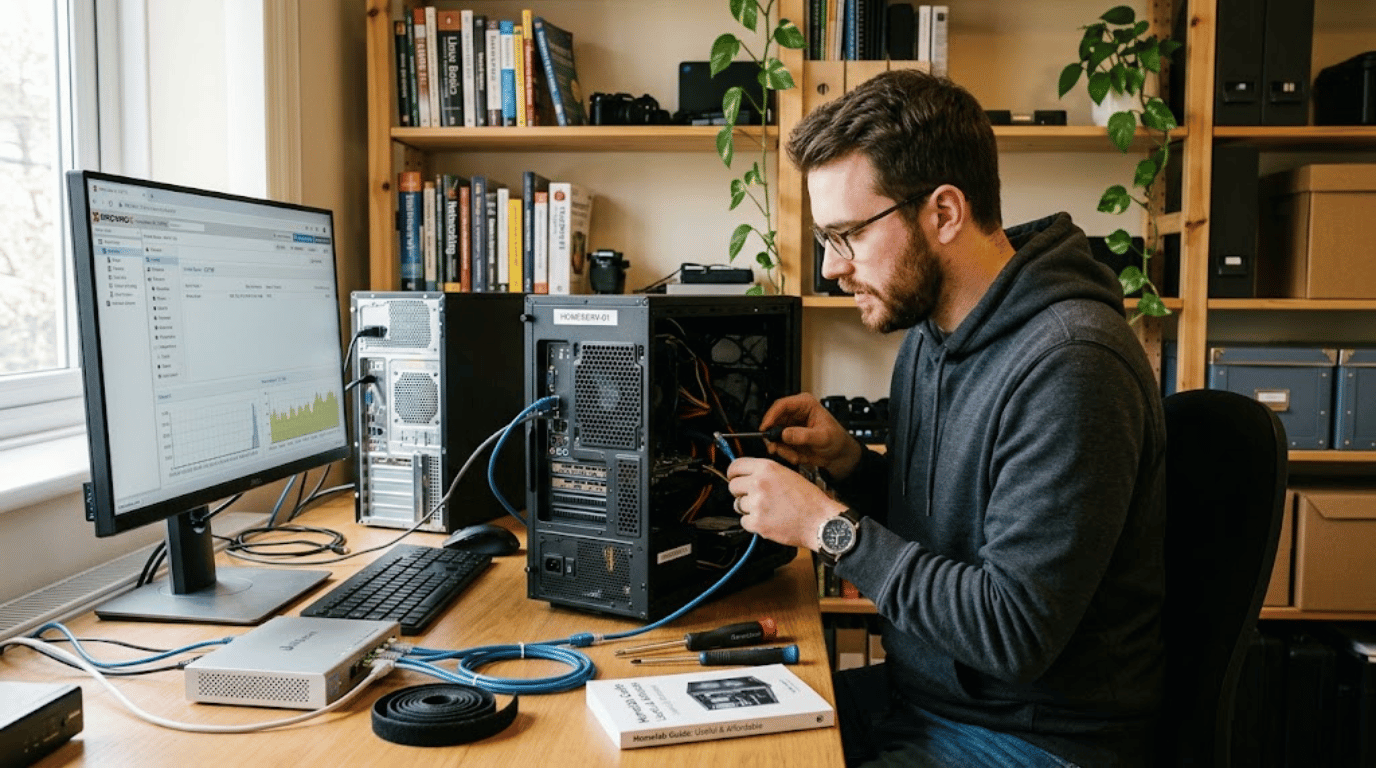
A homelab lets you run servers, applications, storage, and networking tools on hardware you control at home. You can start with an old computer or a modest mini PC instead of buying enterprise equipment. The smartest first setup solves a few useful problems before adding more hardware.
A beginner home server can start with one computer, Ethernet, storage, and a stable operating system. Add containers or virtual machines for applications, secure remote access, and a tested backup plan. Expand only after your workloads show that you need more memory, storage, networking capacity, or physical machines.
Home Server Setup at a Glance
| Decision | Good beginner choice | Why it works |
|---|---|---|
| Hardware | Existing PC or used mini PC | Low initial cost and enough power for many services |
| Memory | 8–16 GB to start | Supports several lightweight containers or small virtual machines |
| Storage | SSD for the system, separate backup storage | Fast everyday use with safer recovery options |
| Platform | Linux with Docker or Proxmox VE | Both offer clear paths for adding services |
| Networking | Wired Gigabit Ethernet | Stable and widely supported |
| Remote access | Private mesh VPN | Avoids exposing unnecessary services directly |
| First projects | Monitoring, file sharing, media, DNS | Useful projects with manageable complexity |
| Backup | Separate local or off-site copy | Protects data when hardware or configuration fails |
How to Plan Your Homelab Before Buying Hardware

Start by listing two or three things you want the server to accomplish. You might host files, learn Linux, test containers, or run a media library. Clear goals keep an inexpensive project from becoming an unnecessary collection of hardware.
Next, decide which data would hurt to lose. Personal photographs and documents deserve a stronger backup plan than disposable test machines. Separate experimentation from important storage whenever possible.
Also consider where the machine will live. Large enterprise servers can consume more electricity, produce heat, and create noticeable fan noise. A compact desktop or mini PC usually fits American homes more comfortably.
What Hardware Do Beginners Actually Need?
You may already own everything needed for a useful first server. An older desktop, laptop, or small office PC can handle lightweight services without specialized server parts. Knowing what counts as a personal computer can also help when you repurpose existing hardware.
Aim for a modern 64-bit processor and enough memory for your planned workloads. Eight gigabytes can support simple services, while 16 GB gives virtual machines more breathing room. If you are comparing newer platforms, SciTechWiz’s DDR5 guide explains memory compatibility and capacity choices.
Storage needs depend more on your data than your applications. A small SSD can hold the operating system and containers, while larger drives store media or backups. Review what a terabyte of storage represents before choosing drive capacity.
Desktop systems may also need careful planning for drive power. Traditional PCs commonly use separate power and data connections for SATA drives. SciTechWiz’s SATA power cable guide covers the connector and important compatibility concerns.
Should You Choose Linux, Docker, or Proxmox?
Linux with Docker is a straightforward path when you mainly want self-hosted applications. Docker Engine runs on major Linux distributions, including Ubuntu and Debian. Its container model also makes it easier to separate and update services.
Proxmox VE makes more sense when virtual machines are part of your learning goals. Proxmox supports KVM virtual machines and containers through a web interface. Plan for additional memory beyond the platform itself for your guest workloads.
You do not need both approaches on your first day. Choose Linux with Docker for a simpler application server, or Proxmox for broader virtualization experiments. You can switch platforms later once you understand your actual needs.
7 Steps to Build Your First Home Server
1. Choose two or three useful projects
Write down the services you expect to use every week. Good starting projects include network monitoring, file sharing, media streaming, or a private development environment. Avoid installing dozens of applications merely because they are available.
2. Reuse suitable hardware first
Test an existing computer before buying a new one. Confirm its processor architecture, available memory, storage health, Ethernet connectivity, and idle noise. A successful trial shows you which upgrade will deliver meaningful improvement.
3. Install your base platform
Choose a supported Linux distribution or install Proxmox VE from its official image. Record the server name, local IP address, administrator credentials, and storage layout. Keep those details somewhere secure instead of relying on memory.
4. Connect the server through Ethernet
A wired connection usually gives a server more consistent performance than Wi-Fi. Assign a predictable local address using your router or network configuration. Understanding your home internet connection also helps when planning remote services.
5. Add one application at a time
Install your first container or virtual machine, and confirm it works before moving on. Document important ports, volumes, credentials, and configuration locations. This habit makes troubleshooting far easier after the system grows.
6. Configure private remote access
Avoid opening router ports unless you understand the security consequences. A mesh VPN can provide encrypted access between authorized devices without ordinary public port forwarding. Tools like Tailscale are built for this kind of home-server networking.
7. Back up and test recovery
Copy important information to storage that is independent of the main machine. Then restore a small file or test service to confirm the backup works. A backup you have never restored remains an unverified assumption.
Useful First Projects That Teach Real Skills
Network-wide DNS filtering is a strong first networking project. It teaches addressing, DNS behavior, service availability, and basic troubleshooting. It can also become something your household uses every day.
A file server teaches storage permissions and sharing protocols. Add automated backups once basic sharing works reliably. This progression makes storage management practical instead of theoretical.
Media servers introduce larger storage requirements and client-device considerations. They can also reveal whether your processor needs hardware-assisted video transcoding. Start with direct playback before spending money on processing power.
Monitoring tools provide another useful early project. Track CPU load, memory use, storage capacity, and whether important services respond. Monitoring helps you spot bottlenecks before you buy upgrades.
Networking and Security Basics That Matter
Keep the operating system and applications up to date. Remove services you no longer use, and don’t expose management dashboards publicly. Every unnecessary internet-facing service creates another maintenance responsibility.
Remote administration should use protected authentication and encrypted connections. Private mesh networking tools can simplify access across locations. Such networks create encrypted connections between authorized devices.
You should also know which devices depend on the server. Moving household DNS or important storage onto one machine creates a new point of failure. Document how to restore basic service if that machine becomes unavailable.
Backups Matter More Than Fancy Hardware
A RAID array and a backup solve different problems. Redundant disks can keep some storage systems running after a drive failure. They don’t protect against accidental deletion, malware, theft, or configuration mistakes.
Keep important data on at least one separate storage destination. Valuable personal data may justify keeping another copy off-site. Your recovery plan should match how painful losing the information would be.
Test restores on a schedule instead of assuming successful backup logs guarantee recovery. Start with individual files, then practice restoring important application configuration. Recovery practice often reveals missing passwords, keys, or undocumented dependencies.
How Much Should a Beginner Spend?
The cheapest sensible starting point is hardware you already own. That lets you learn before deciding whether you need more power, memory, storage, or performance. It also prevents buying equipment based on someone else’s workload.
A used small-form-factor business PC can be a practical next step in the U.S. market. Mini PCs are another choice when low noise and compact size matter. Compare total cost, including memory, storage, adapters, and backup drives.
Do not treat a rack as a required milestone. Rack equipment becomes useful when your device count or expansion needs justify it. One quiet machine can teach the same fundamental Linux, networking, container, and virtualization concepts.
When Should You Upgrade?
Upgrade when measurements show a limit, not when your setup looks too simple. Consistently high memory use may justify more RAM, while storage growth may justify larger drives. Network upgrades matter when transfers are measurably limited by existing Ethernet speeds.
A second machine becomes useful when you want clustering, redundancy, or a separate testing environment. Dedicated network equipment becomes useful when you begin learning VLANs or advanced firewall rules. Each purchase should answer a specific technical requirement.
This approach also keeps troubleshooting manageable. Adding one layer at a time makes cause and effect easier to understand. You learn more from a small system you understand than a complex rack you cannot recover.
Common Beginner Mistakes to Avoid
Buying old enterprise servers simply because they are inexpensive can create unexpected power and noise costs. Installing too many services at once can make failures difficult to isolate. Opening services directly to the internet can also create avoidable security risks.
Another mistake is treating backups as a future task. Hardware eventually fails, and configuration mistakes can happen much sooner. Build recovery habits before your server stores irreplaceable information.
Finally, do not rebuild constantly without documenting what worked. Keep notes about addresses, application versions, storage paths, and configuration changes. Those notes become more valuable as your environment grows.
Frequently Asked Questions
What is a homelab used for?
A homelab is commonly used for learning Linux, networking, virtualization, containers, storage, and self-hosting. It can also run practical services such as backups, media libraries, dashboards, and private development tools. The exact setup depends on what you want to learn or operate.
Can I use an old laptop as a home server?
Yes, an old laptop can make an effective starter server when its hardware remains reliable. Its built-in battery may even provide brief protection during power interruptions. Check cooling, storage health, Ethernet options, and lid-sleep settings before relying on it continuously.
Is 8 GB of RAM enough?
Eight gigabytes can support several lightweight containers and basic server tasks. Virtual machines usually increase memory requirements faster than individual containers. Start with your workloads, measure usage, and expand memory only when necessary.
Do I need Proxmox?
No, Proxmox is optional, not required. Plain Linux with Docker can be simpler if you mainly want application containers. Proxmox becomes attractive when you want to manage multiple virtual machines and containers easily.
Do I need a server rack?
No, a rack offers organization rather than a learning requirement. A mini PC, desktop, or laptop can provide a complete learning environment. Add rack equipment only when your physical hardware count or expansion plans justify it.
Can I access my server away from home?
Yes, but configure remote access carefully. A private VPN or mesh network can connect authorized devices without exposing every service publicly. Avoid random port forwarding unless you understand authentication, encryption, patching, and firewall rules.
Build Small, Document Everything, and Expand With Purpose
Your first homelab should teach you how the pieces work together rather than imitate a corporate data center. Begin with one machine, one network connection, useful services, and a tested backup. Add complexity only when a clear need appears.
Keep notes as you install services and change configurations. Measure resource use before purchasing upgrades, and practice recovering important data. That process creates a home server you understand and can maintain confidently.