


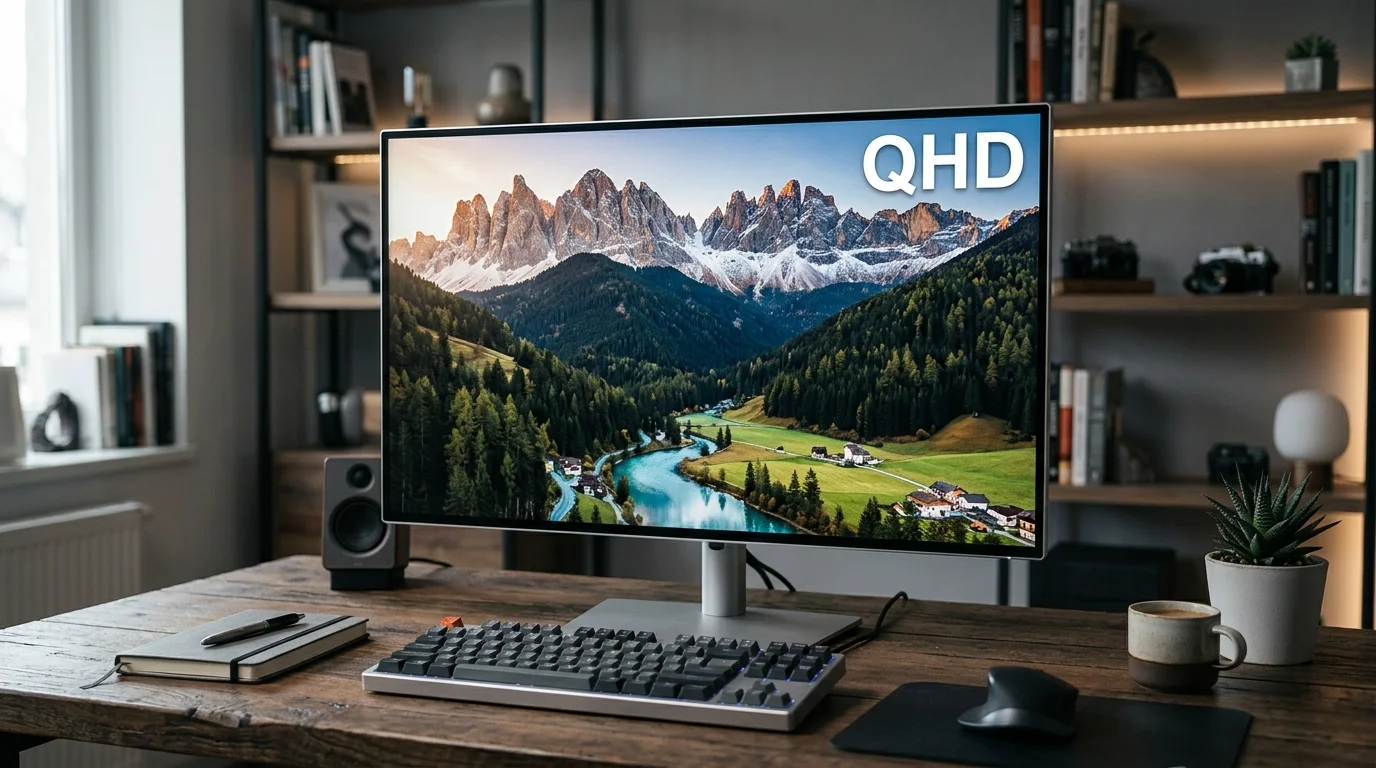
QHD is a 2560 × 1440 display resolution commonly called 1440p or Quad HD. It gives you noticeably more detail than 1080p without the heavier graphics demands of 4K. That balance makes it especially useful for desktop monitors, gaming setups, workstations, and everyday PCs.
Direct answer: QHD stands for Quad High Definition and usually means 2560 × 1440 pixels on a 16:9 screen. It has about 78% more pixels than 1080p, while 4K contains 2.25 times as many pixels. This middle ground makes 1440p attractive when you want sharper visuals without the hardware demands of 4K.
| Quick fact | What it means |
|---|---|
| Standard resolution | 2560 × 1440 pixels |
| Common name | 1440p or Quad HD |
| Typical aspect ratio | 16:9 |
| Total pixels | 3,686,400 |
| Compared with 1080p | About 78% more pixels |
| Compared with 4K | 4K has 2.25× as many pixels |
| Common monitor size | 27 inches is especially popular |
| Strong uses | Gaming, productivity, multitasking, general PC use |
What Does QHD Mean on a Monitor?
Quad HD gets its name from its relationship with 720p HD. A 1280 × 720 image contains 921,600 pixels, while 2560 × 1440 contains 3,686,400. That makes the higher resolution exactly four times the total pixel count of 720p.
You will also see 2560 × 1440 described as 1440p. The number refers to the display’s 1,440 vertical pixels in its standard 16:9 form. WQHD usually refers to the same 2560 × 1440 format, with the “W” emphasizing widescreen presentation.
This terminology becomes less precise around ultrawide monitors. A 3440 × 1440 screen keeps 1,440 vertical pixels but adds more horizontal space. Manufacturers normally describe that wider format as UWQHD rather than standard Quad HD.
1440p vs 1080p vs 4K: What Changes?
Resolution affects how much visual information a display can show. Full HD contains 1920 × 1080 pixels, while 1440p increases that to 2560 × 1440. Standard 4K UHD goes further with 3840 × 2160 pixels.
| Resolution | Pixel dimensions | Total pixels | Practical position |
|---|---|---|---|
| Full HD | 1920 × 1080 | 2.07 million | Lower hardware demand |
| 1440p | 2560 × 1440 | 3.69 million | Balance of detail and performance |
| 4K UHD | 3840 × 2160 | 8.29 million | Highest detail of these three |
The increase from 1080p to 1440p gives you roughly 78% more pixels. Text can appear cleaner, fine interface elements become easier to distinguish, and detailed games gain visible definition. The improvement becomes easier to notice as monitor size increases.
Moving from 1440p to 4K creates another substantial jump in detail. A 4K screen must display more than twice as many pixels as a 1440p screen. That extra detail can help with editing and productivity, but it also demands more from graphics hardware during gaming.
SciTechWiz readers comparing larger high-resolution displays can also see the site’s budget 4K TV guide. That guide shows why resolution is only one part of picture quality. Refresh rate, panel technology, brightness, and connectivity can matter just as much.
Why Screen Size Matters as Much as Resolution
A resolution number alone can’t tell you how sharp a display will look. Pixel density changes when the same pixel count stretches across different screen sizes. A smaller panel packs those pixels closer together, producing a higher pixels-per-inch figure.
A 24-inch 1440p monitor provides roughly 122 pixels per inch. A 27-inch model sits near 109 PPI, while a 32-inch model drops to about 92 PPI. These figures explain why 27-inch 1440p displays are common for mixed desktop use.
At 27 inches, the resolution provides more workspace and finer detail than standard 1080p. It also remains usable at normal scaling settings for many Windows users. RTINGS identifies 24-to-32-inch screens as common territory for 1440p displays.
Larger screens do not automatically require 4K, though the sharpness advantage becomes easier to see. Your viewing distance, eyesight, software scaling, and desk depth all affect the result. Shoppers should consider physical size and resolution together, not pixel count alone.
Is 1440p Good for Gaming?
For PC gaming, 1440p sits between the performance demands of 1080p and 4K. Your graphics card renders 3.69 million pixels for each native-resolution frame. A 4K frame contains about 8.29 million pixels, so maintaining high frame rates becomes more demanding.
This difference can make 1440p attractive for players who value both sharpness and fast refresh rates. A capable system can often target higher frame rates at 1440p than at native 4K. Competitive players may value that responsiveness more than the additional detail from 4K.
Resolution should never be the only gaming specification you check. Refresh rate, response performance, adaptive sync, panel behavior, and connection bandwidth also affect the experience. SciTechWiz’s broader gaming coverage is useful when comparing those factors across gaming hardware.
Your GPU should influence the final choice. Entry-level hardware may perform better at 1080p, while stronger cards make 1440p high-refresh gaming more practical. High-end systems can push 4K further, although your preferred games and frame-rate target still matter.
Is 1440p Good for Work and Everyday Computing?
The extra workspace can help with documents, browser windows, spreadsheets, and editing software. More pixels let interfaces show finer detail when applications and scaling settings cooperate. Samsung describes the resolution as suitable for multitasking, professional work, gaming, and moderate creative workloads.
Text clarity is another reason to consider it over 1080p. RTINGS notes that 1440p offers stronger text clarity for productivity, especially as display sizes increase. A 27-inch 1080p monitor spreads fewer pixels across the same physical area.
4K still has an advantage when maximum text sharpness or detailed creative work matters most. Photo editing and 4K video workflows can benefit from the higher native resolution. For mixed home and office use, 1440p can reduce cost and hardware requirements while retaining useful sharpness.
If you are comparing computer hardware more broadly, browse SciTechWiz’s hardware guides and technology coverage. Those sections can help you compare displays alongside other components, rather than treating resolution as an isolated specification.
Is 1440p Really “2K”?
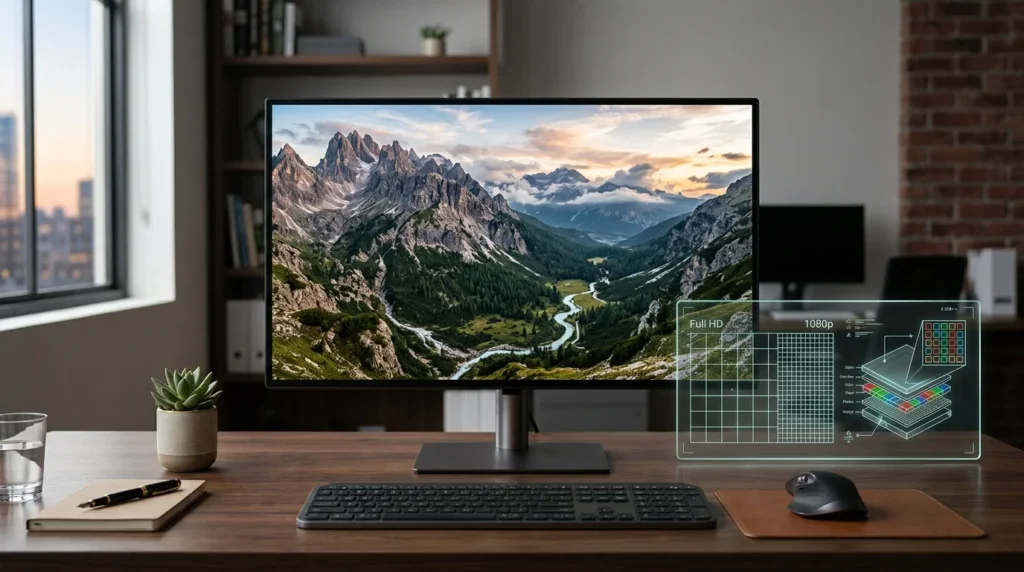
You may see stores, monitor brands, and PC users describe 2560 × 1440 as “2K.” The label is common in consumer technology, but it is not technically precise. Digital cinema uses 2048 × 1080 as its standard 2K format.
That difference rarely causes trouble when shopping for a gaming monitor. Product listings often place “2K,” “1440p,” and “2560 × 1440” close together. Checking the actual pixel dimensions prevents confusion and gives you the most reliable specification.
The same rule helps with unusual ultrawide displays. Marketing names can change between manufacturers, while pixel dimensions remain concrete. Always check the listed horizontal and vertical resolution before comparing two screens.
When Should You Choose 1440p Instead of 4K?
Choose 1440p when you want a clear upgrade from 1080p without making maximum resolution your priority. It suits many 27-inch desktop setups and works well for gaming mixed with everyday productivity. It can also leave more GPU headroom for higher frame rates.
Choose 4K when text sharpness, high-resolution editing, or detailed visuals matter more than GPU headroom. The difference can become more useful on larger desktop screens. RTINGS generally favors 4K for productivity and editing, while describing 1440p as a strong gaming and mixed-use option.
Television and projector buyers should treat the decision differently because viewing distances are longer. Modern TVs commonly center on 4K rather than 1440p as their native format. SciTechWiz’s short-throw 4K projector guide explains another large-screen option for home viewing.
What to Check Before Buying a 1440p Display
Resolution should be one part of your purchase decision. The rest of the display determines how those pixels look and behave. Check the complete specification before paying more for a resolution label.
- Match screen size to your desk distance and desired pixel density.
- Check refresh rate if gaming or smooth motion matters.
- Confirm your GPU can drive your target games at native resolution.
- Compare panel quality, brightness, contrast, and color performance.
- Verify HDMI or DisplayPort support for your required resolution and refresh rate.
A cheaper 1440p display is not automatically better than a strong 1080p model. Panel response, color quality, backlighting, and ergonomics can change the experience more than resolution alone. Buy for your complete use case rather than chasing the largest specification number.
Frequently Asked Questions
Is QHD the same as 1440p?
Yes, in normal monitor shopping, the term usually refers to 2560 × 1440 resolution. The standard format uses a 16:9 aspect ratio and contains about 3.69 million pixels. Some ultrawide displays also have 1,440 vertical pixels, so it’s still useful to check both dimensions.
Is 1440p better than 1080p?
It provides more pixels and can produce sharper detail at the same screen size. It also gives you more usable desktop space when software scaling allows it. The tradeoff is higher graphics demand during games and potentially higher display cost.
Is 1440p better than 4K?
Neither resolution is better for every situation. 4K gives you greater detail, while 1440p needs less graphics power for native-resolution gaming. Your screen size, GPU, applications, and preferred frame rate should decide between them.
Is a 27-inch 1440p monitor a good combination?
A 27-inch 1440p screen provides about 109 pixels per inch. That density offers noticeably finer detail than a 27-inch 1080p display. It remains a common size and resolution pairing for gaming and productivity.
Does a higher resolution always mean better picture quality?
No, because resolution measures pixel dimensions, not overall display quality. Contrast, brightness, color accuracy, motion handling, panel technology, and viewing distance also matter. A well-designed lower-resolution display can outperform a weak higher-resolution model in several visible areas.
The Bottom Line
For many desktop users, 2560 × 1440 remains a practical middle ground between Full HD and 4K. You get considerably more detail than 1080p while avoiding the full rendering load of 4K. That combination is particularly useful on 27-inch monitors used for gaming, work, and general computing.
Start with your screen size, graphics hardware, and main workload before choosing a display. Then compare refresh rate, panel quality, connectivity, and ergonomics alongside resolution. That approach gives you a screen that fits how you use your computer, rather than one chosen from a single specification.