



Introduction
Were you having trouble with your AirPods Pro? Sometimes, a simple reset is necessary to get them working perfectly again. This guide will show you “How to Reset AirPods Pro” in easy-to-follow steps. Whether you’re experiencing connectivity issues, audio problems or need a fresh start, resetting your AirPods Pro can help resolve these common issues. Follow along as we walk you through the quick and straightforward process of resetting your AirPods Pro, ensuring you get back to enjoying your music and calls without any hassle.
How To Reset Airpods Pro?
If your AirPods Pro is not functioning correctly, learning “How to Reset AirPods Pro” can be a lifesaver. Resetting your AirPods Pro can fix connectivity problems, audio glitches, or pairing errors. To reset, place your AirPods Pro in their case, open the lid, and hold the setup button on the back until the status light flashes amber and then white. This simple process will restore your AirPods Pro to their factory settings, ready to be set up as new. Follow these steps to get your AirPods Pro working perfectly again quickly.
Resetting AirPods Pro: When and Why It’s Useful
Resetting your AirPods Pro can be a quick and effective solution when you experience connectivity issues, audio glitches, or problems with pairing to your device. This process essentially restores the earbuds to their original factory settings, clearing out existing Bluetooth connections and allowing you to set them up fresh as if they were new. It’s especially helpful when simple fixes like reconnecting Bluetooth or toggling device settings don’t resolve the issue. A full reset can address a range of common frustrations — from one AirPod not playing audio to charging troubles — and ensures that the next pairing with your device starts with a clean slate. Including a reset option in your troubleshooting toolbox empowers users to maintain optimal performance and reliability from their AirPods Pro over time.
Why You Might Need to Reset Your AirPods Pro
Before diving into how to reset AirPods Pro, it’s essential to understand why you might need to do this. Here are some common reasons:
Connectivity Issues
One of the most common problems AirPods Pro users face is connectivity issues. Your AirPods Pro might have trouble pairing with your device, disconnect frequently, or fail to connect altogether. Resetting can often fix these problems.
Audio Problems
If you’re experiencing poor sound quality, one AirPod not working, or other audio-related issues, resetting your AirPods Pro can help. A reset will clear any temporary glitches that might be affecting performance.
Unresponsive AirPods Pro
In some cases, your AirPods Pro might become completely unresponsive. They might not charge, respond to touch controls, or play audio. Resetting can revive your AirPods Pro and restore their functionality.
Selling or Giving Away Your AirPods Pro
Resetting your AirPods Pro is crucial if you plan to sell or give away your AirPods Pro. This removes all settings and connections, allowing the new owner to set them up as new.
How to Reset AirPods Pro: Step-by-Step Instructions
Resetting your AirPods Pro is a straightforward process. Follow these steps to reset your AirPods Pro to their factory settings:

Step 1: Put Your AirPods Pro in Their Case
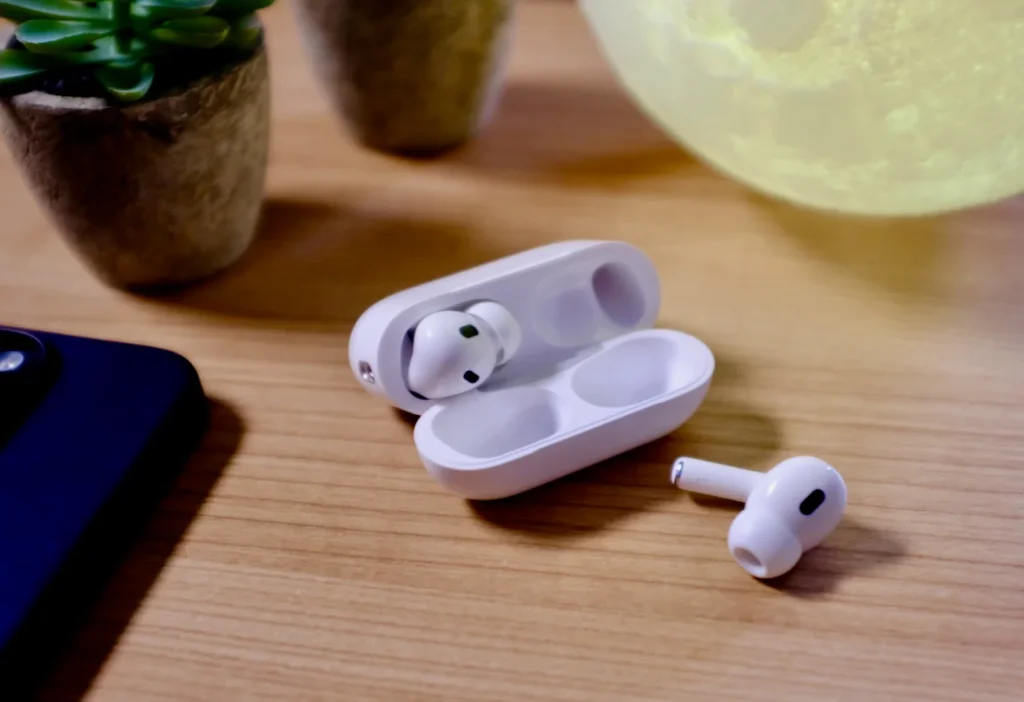
To begin, place both of your AirPods Pro in their charging case. Ensure that the case has some battery power. If the case is low on battery, connect it to a power source using the Lightning cable.
Step 2: Open the Lid of the Charging Case
Open the lid of the charging case. Ensure your AirPods Pro is appropriately seated in the case and the lid remains open.
Step 3: Locate the Setup Button
You’ll find a small, circular button on the back of the charging case. This is the setup button you’ll need to reset your AirPods Pro.
Step 4: Press and Hold the Setup Button
- Press and hold the setup button for about 15 seconds.
- You should see the status light on the front of the case flash amber.
- Keep holding the button until the status light flashes white.
- This indicates that your AirPods Pro has been reset to factory settings.
Step 5: Reconnect Your AirPods Pro
- After resetting, you must reconnect your AirPods Pro to your device.
- Open the Bluetooth settings on your device and select your AirPods Pro from the list of available devices.
- Follow the on-screen prompts to complete the pairing process.
Troubleshooting Tips
If you encounter any issues while resetting your AirPods Pro, here are some troubleshooting tips:
Ensure Sufficient Battery
- Ensure your AirPods Pro and the charging case have enough battery power.
- If the battery is low, charge your AirPods Pro and the case before attempting to reset them.
Check for Firmware Updates
- Ensure that your AirPods Pro are running the latest firmware.
- Sometimes, issues can be resolved by simply updating the firmware.
- You can check for updates in your device’s Bluetooth settings.
Try a Different Device
- If you’re having trouble resetting your AirPods Pro with one device, try using a different device to complete the process.
- This can help identify if the issue is with the Airpods Pro or the device you’re using.
Contact Apple Support
If you’ve tried all the steps and your AirPods Pro is still not working, it might be time to contact Apple Support. They can provide further assistance and help you determine if a hardware issue needs to be addressed.
Benefits of Resetting Your AirPods Pro
Resetting your AirPods Pro can provide several benefits, including:
Improved Performance
A reset can clear temporary glitches and bugs affecting your AirPods Pro’s performance. This can result in better connectivity, improved audio quality, and smoother operation.
Fresh Start
Resetting your AirPods Pro gives you a fresh start. It’s like having a new pair of AirPods Pro without any previous settings or connections. This can be especially useful if you’ve been experiencing persistent issues.

Increased Compatibility
Resetting your AirPods Pro can improve their compatibility with different devices. If you’ve been having trouble connecting to a specific device, a reset can help establish a more stable connection.
Conclusion
Knowing how to reset AirPods Pro is essential for any AirPods Pro owner. Whether you’re dealing with connectivity issues, audio problems, or need a fresh start, resetting your AirPods Pro can provide a quick and effective solution. Following the simple steps outlined in this guide, you can reset your AirPods Pro to their factory settings and enjoy improved performance and reliability. Remember to maintain your AirPods Pro properly to prevent future issues and ensure they continue to deliver the high-quality experience you’ve come to expect.
If you want to read an interesting article about it, explore our “How to” category.
FAQs
To fix connectivity or audio issues and restore factory settings.
Please place them in the case, open the lid, and press and hold the setup button until the status light flashes white.
They return to factory settings, clearing all previous connections.
Connection issues can occur due to Bluetooth interference, software glitches, or outdated device settings. A reset often clears these temporary problems and restores normal pairing.
Resetting erases all existing Bluetooth pairings and returns the earbuds to factory settings. You’ll need to pair them with your device again as if they were new.